Planche documentation
A practical guide to Planche, using the screens you will see in the app. Every screenshot uses the sample database, which you can open in the browser in one click.
Getting started
Planche is a database client that runs in your browser. Open SQLite files directly in the page, or connect to MySQL, PostgreSQL, and other network databases through a small agent running on your computer. You can use both at once.
Opening SQLite files
Drop a .sqlite, .db, or .sqlite3 file onto the page, or choose one from the welcome screen. SQLite compiled to WebAssembly loads it inside the page, so the file is never uploaded. If the browser supports the File System Access API, edits can be written back to the original file; otherwise, download a copy.
MySQL, PostgreSQL, SQL Server, Oracle, Neon, Supabase, Cloudflare D1: one command
Browsers cannot open TCP connections to databases directly, so a local agent handles the connection:
npx plancheThe agent starts on 127.0.0.1:8888, and prints a pairing link to open (--open opens it in your browser for you). The link contains a single-use code that the app exchanges for the agent token, keeping the token out of URLs and shell history. After pairing, the browser communicates only with 127.0.0.1; the agent connects to the database. Your host, user, and password stay on your machine.
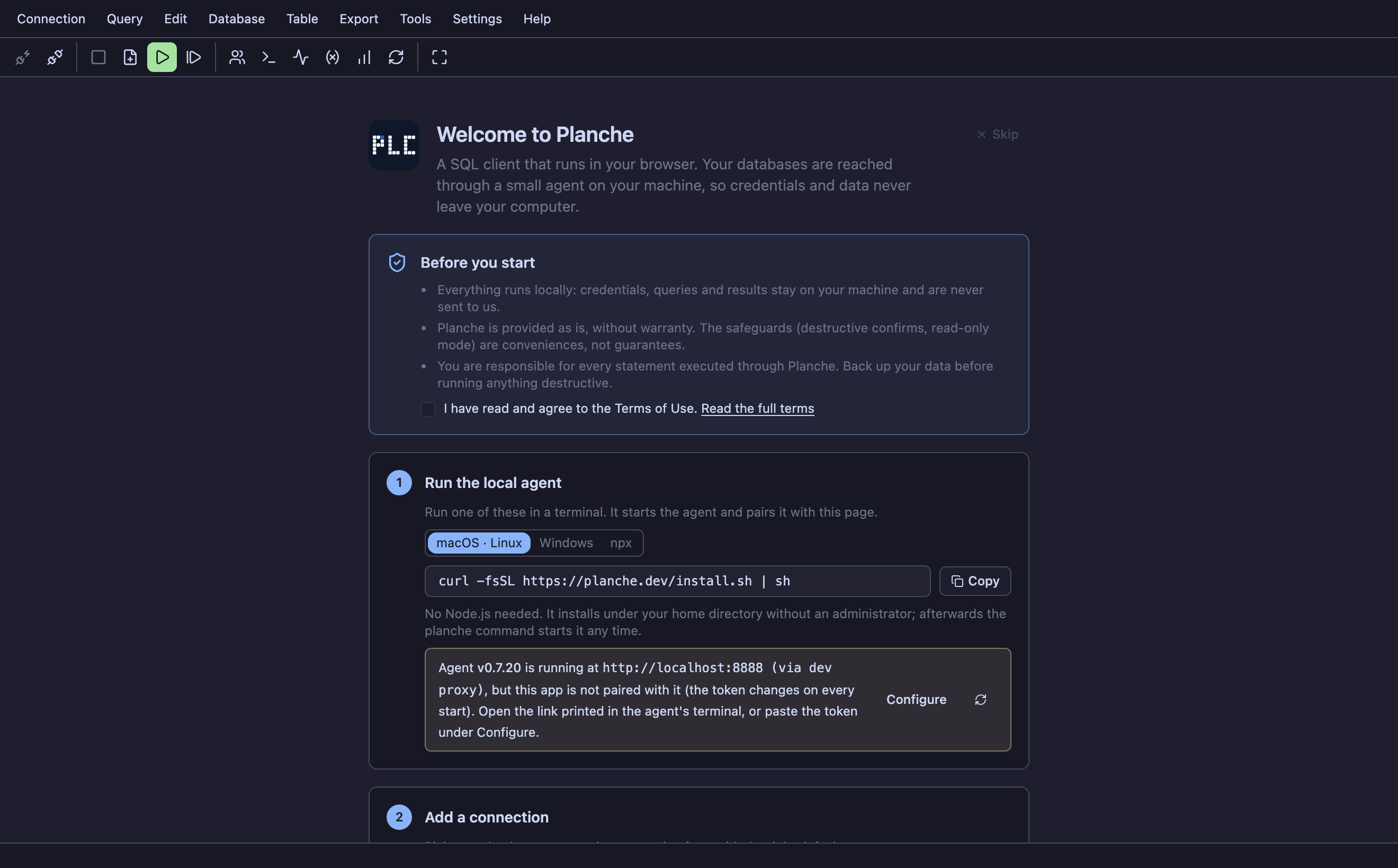
The agent requires Node.js 22 or newer. npx fetches and runs it from the npm registry. Use npx planche@latest to run the latest release, or replace latest with a version number to select a specific release.
Or install it, instead of using npx
If Node.js is not available, or you prefer a permanent command, install the agent with one of these commands:
macOS, Linux
curl -fsSL https://planche.dev/install.sh | shWindows
irm https://planche.dev/install.ps1 | iexFiles are installed under your home directory without administrator access. The installer uses Node.js 22 or newer if it is already available; otherwise it downloads the official runtime and verifies it against the checksums published by nodejs.org. It then adds planche to your PATH and starts the agent. Open a new terminal to use the updated PATH.
Update it with planche upgrade, remove it with planche uninstall; your settings in ~/.planche survive both. When a newer version exists the agent says so, at most once a day — PLANCHE_NO_UPDATE_CHECK=1 turns that off. The install scripts are plain text, so you can read one first: curl -fsSL https://planche.dev/install.sh -o install.sh.
If planche.dev cannot be reached, the agent serves its bundled copy of the app at its own address. You can keep working, but that copy does not include the sample database. Its version matches the agent, so npx planche@latest keeps it current.
Restricted and air-gapped networks
Fetching the agent is the only step that needs an external network: npx downloads it from the npm registry. If that is blocked, install it on a machine that can reach npm (npm i -g planche), or use npm pack planche to create a tarball for transfer or an internal registry.
After that, no request needs to leave the network. The agent serves the app itself, and the page makes no requests outside your machine. The editor, SQLite engine, and icons are bundled; there is no CDN, web font, or analytics. Pass --serve-app to serve locally from the start, including on networks that intercept requests such as captive portals.
Only features that require internet access are unavailable: hosted services such as Neon, Supabase, and Cloudflare D1; SSH to unreachable hosts; and the sample database. Databases inside the network, including a gateway shared by a team, continue to work normally.
The workspace
You can keep several database connections open in one browser tab. Each connection gets a tab below the toolbar; click it to switch databases.
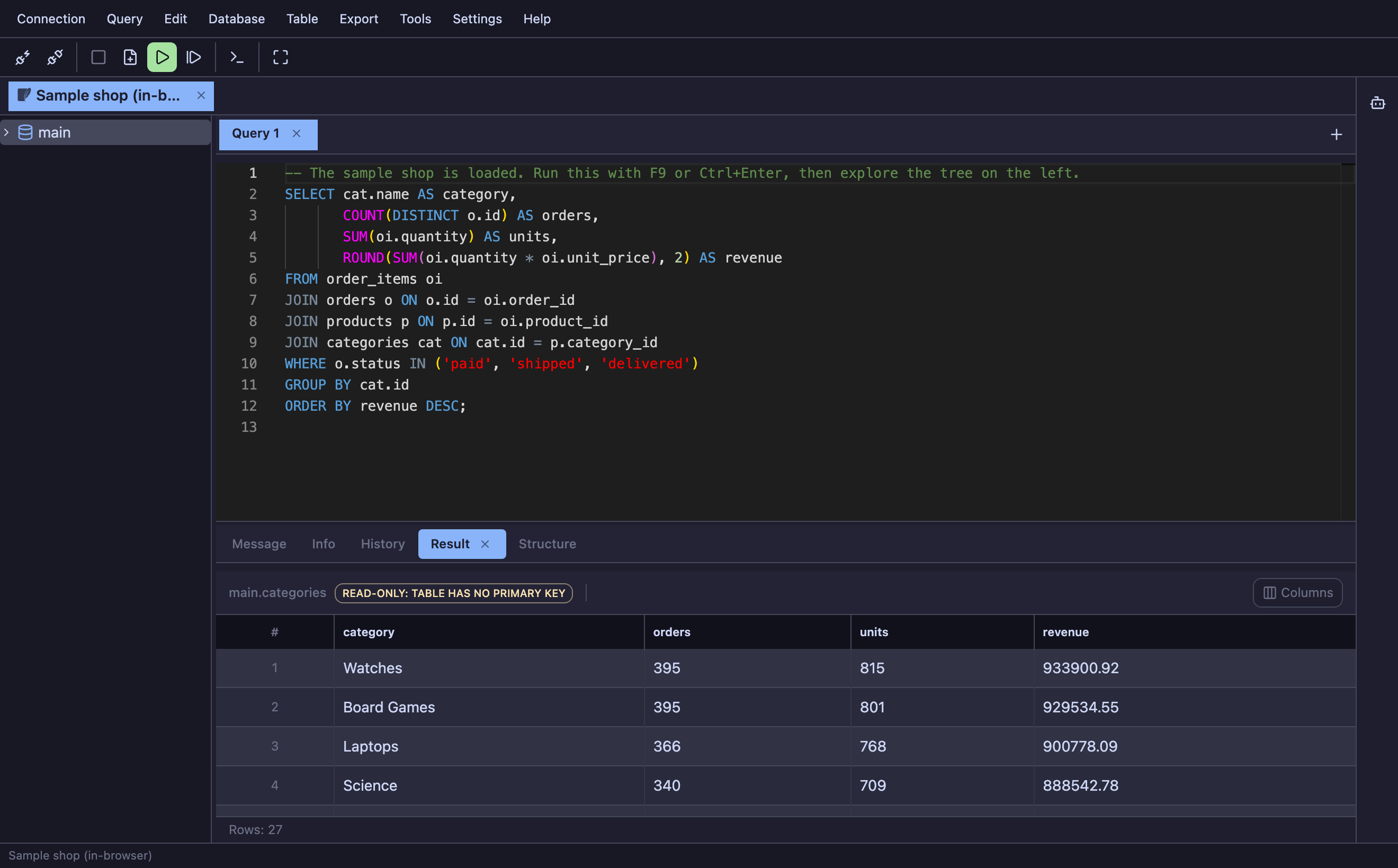
Switching connections changes the whole workspace, because every connection keeps its own state. Come back to a connection and you find the same query tabs, the same half-written SQL and the same result rows you left there.
- Schema tree (left) — the databases, tables, views and routines of this connection. Click a node to expand it, right-click for the actions available on it.
- Query tabs (top right) — one SQL editor each; open as many as you need. A tab opened with “Open Table” shows the table's rows in a grid instead of an editor.
- Result panel (bottom) — Message lists what each statement did (rows affected, errors, duration), Info and History sit next to it, and every result set that comes back gets its own Result tab.
- Footer — the name of the current connection, badges when it is read-only or has an open transaction, and the last status message.
Closing the browser is not destructive: after a reload the connections open themselves again, the query tabs and their text return, and an SQLite database you had opened from a file is restored from a local copy, even before you grant access to the file again.
Connecting to a database
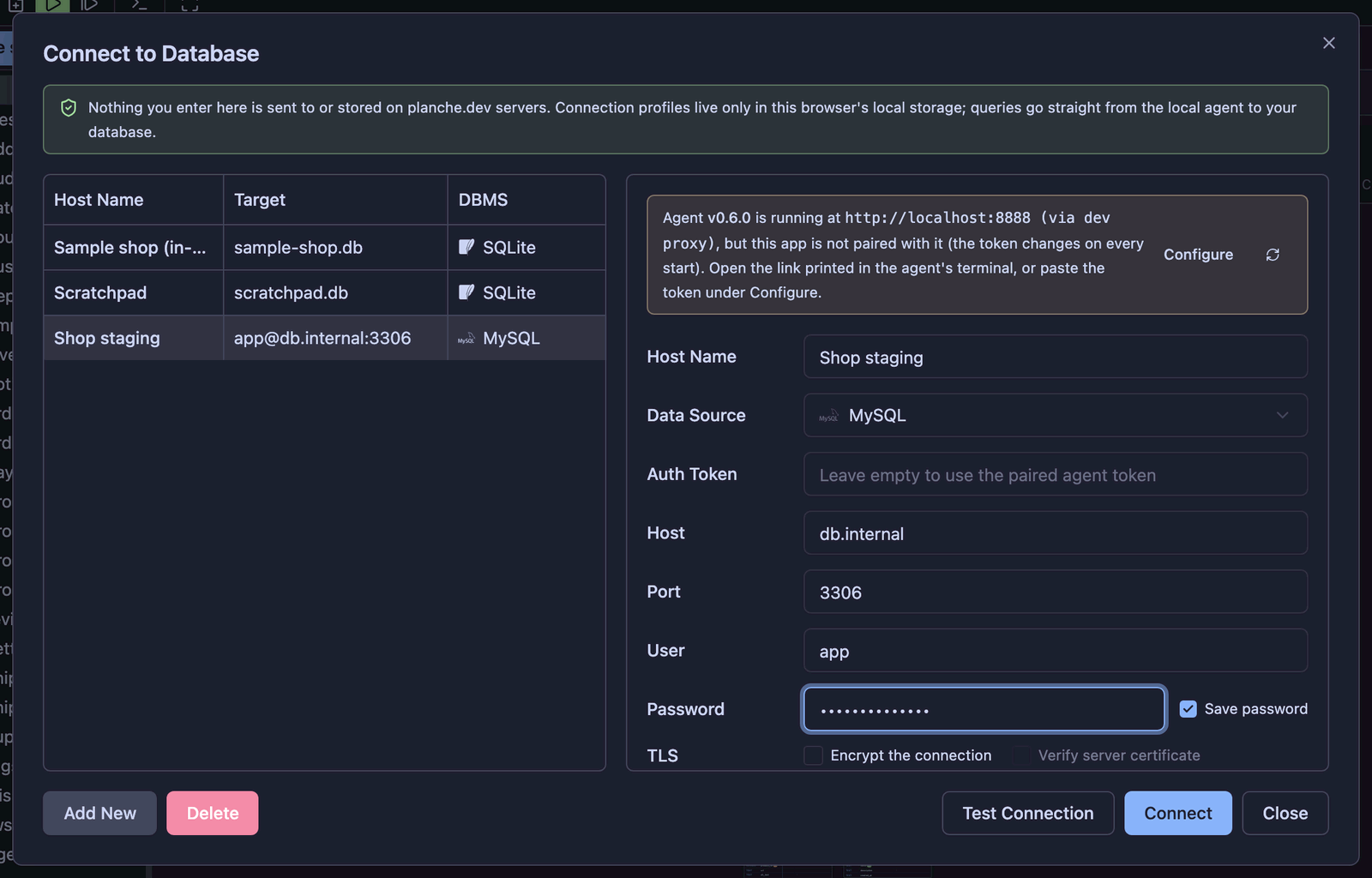
Open the connection manager with Connection › Connect (Alt + N), select Add New, choose a DBMS, and fill in its fields. Test Connection checks the settings without opening a session; Connect opens a connection tab.
What each engine needs
- MySQL / MariaDB — host, port (3306), user, password. The database is optional; the tree shows all of them. Charset defaults to
utf8mb4. - PostgreSQL — host, port (5432), user, password and a database, which is required: a PostgreSQL session cannot switch databases. Its schemas then act as “databases” in the tree, and Planche switches between them with
SET search_path. - SQL Server — host, port (1433), login, password, database. Schemas (
dbo, …) act as “databases”. Turn TLS on for Azure SQL; for a self-signed certificate leave Verify server certificate off. - Oracle — host, port (1521), user, password and a service name (for example
FREEPDB1). The agent uses the pure-JavaScript thin driver, so there is no Instant Client to install. Schemas are the users, and Planche switches withALTER SESSION SET CURRENT_SCHEMA. - SQLite — choose how to open it. In the browser needs nothing installed and works on an in-memory copy of the file. Via the agent opens the file with real SQLite on the machine running the agent, so locking and WAL work alongside other programs; there you type a path and can let Planche create the file.
- Neon / Supabase — paste the connection string from the console and host, user, password and database fill themselves in. TLS is always on and there is no SSH step. For Supabase use the session pooler (port 5432) or the direct connection; port 6543 is the transaction pooler, where each statement may land on a different backend, so schema switching, temporary tables and manual transactions do not work — Planche warns you if you pick it.
- Cloudflare D1 — account id, database id and an API token with the D1 Edit permission (D1 Read for read-only). The agent calls the Cloudflare REST API with it; there is no TCP connection and no SSH. Every request auto-commits, so manual transactions are disabled for D1.
- Redis — host, port (6379), password, and an ACL user when the server has one (leave it empty for the
defaultuser). The database field is the logical database to start in (db0). TLS and SSH work as for the SQL engines. - Elasticsearch / OpenSearch — host and port (9200). With a user and password Planche signs in with basic auth; with the user left empty the password is sent as an API key (the encoded
id:key). Turn TLS on forhttps; for a self-signed certificate, which Elasticsearch 8 uses by default, leave Verify server certificate off. - Cloudflare DO (wrangler dev) — only the wrangler dev server URL (default
http://localhost:8787); no account id, token or password. It reads a localwrangler devsession, not deployed Durable Objects, and shows each object as its own database.
Passwords, tokens and guard rails
- Save password — off means the password lives only until you close the tab; on stores it with the profile in this browser. Either way it goes nowhere but your own agent.
- Agent token — leave empty to use the token from the pairing link. Fill it only when you run several agents or paired manually.
- Read-only, environment color and transaction mode are per profile; see Safety.
SSH tunnels
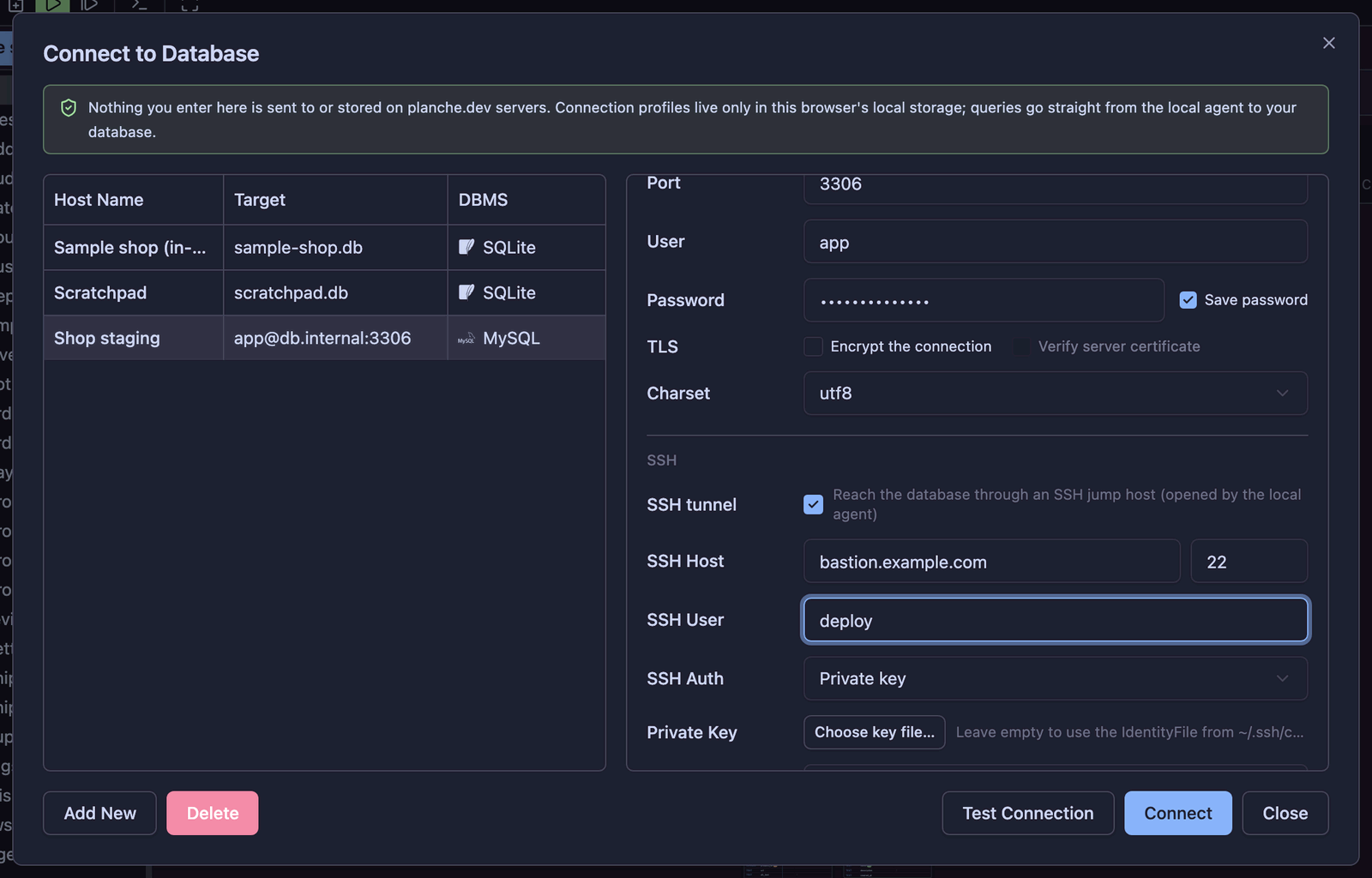
Use an SSH tunnel for databases that are reachable only through a bastion host. Enable SSH tunnel in the profile and enter the jump-host details; the local agent opens the tunnel and sends the database connection through it.
Fields
- SSH Host / Port — the bastion. A
Hostalias from your~/.ssh/configworks here: Planche resolves it exactly like thesshcommand, filling inHostName,User,PortandIdentityFile(Includedirectives are followed;ProxyJumpis not supported). - SSH User — leave empty to take the user from the config block.
- SSH Auth — Private key, Password or ssh-agent.
- Private key: pick the key file, or leave it empty to use the
IdentityFilefrom the config — failing that,~/.ssh/id_*. Add the passphrase if the key has one. - ssh-agent: uses the agent socket (
SSH_AUTH_SOCK) of the machine runningnpx planche, so hardware keys and forwarded agents work.
- Private key: pick the key file, or leave it empty to use the
- The database host and port in the form above are resolved on the jump host: usually
127.0.0.1or an internal name.
Host keys
The first connection to an unknown jump host shows its fingerprint and asks you to accept it. Accepted keys are appended to ~/.planche/known_hosts, and your existing ~/.ssh/known_hosts is read as well. If the key later changes, the connection is refused rather than trusted again — the same rule the ssh command follows.
Good to know
- Keys and passphrases follow the Save password setting, and never leave your machine: they go from the browser to your local agent only.
- The tunnel is closed together with the connection.
- An SSH authentication failure is reported as such, separately from a database error, so you know which half to fix.
- Set
PLANCHE_SSH_CONFIG=nonebefore starting the agent if you would rather it ignored~/.ssh/configand the default keys.
Cloudflare Durable Objects with wrangler dev
Cloudflare DO (wrangler dev) is for local development only. It reads the Durable Objects of a running wrangler dev session on your own machine. Deployed Durable Objects are not supported.
Why each object is a database
Every Durable Object owns its own private SQLite database, so objects appear as separate databases in the schema tree. A named object is shown as <namespaceId>/<object>. For example, do-probe-Counter/probe-one means the probe-one object in the do-probe-Counter namespace, where the namespace id is <script>-<ClassName>. This is the object name passed to idFromName(), not a conventional database name. Objects created with newUniqueId() have no name and appear under their 64-character hexadecimal id.
wrangler keeps a development registry. Durable Objects from other wrangler dev sessions running at the same time also appear, so one Planche profile can inspect several local projects.
Connect
- Run
wrangler devin the Worker project. - Run
npx planche, then create a Cloudflare DO (wrangler dev) connection. - Enter the wrangler dev server URL. The default is
http://localhost:8787. There is no account id, API token, password or SSH setting.
The local agent reads wrangler's Local Explorer API at <devUrl>/cdn-cgi/local/explorer/api, so no Worker-side component needs to be installed or deployed. The URL must be loopback; otherwise the agent would act as an HTTP proxy to arbitrary hosts.
If nothing is listening, Planche reports: Cannot reach a wrangler dev server at http://localhost:8787 (fetch failed). Run `wrangler dev` in your Worker project and try again.
If the port belongs to another server, Planche reports: ... answered (HTTP 401) but is not a wrangler dev server. Check the port, and that `wrangler dev` (wrangler 4.x) is what is running there.
SQLite tools and storage
Because Durable Object storage is SQLite, the SQL editor and ctx.storage.sql tables work like other SQLite databases. Planche reads tables, views, triggers, columns and indexes through sqlite_master and PRAGMA; supports CREATE TABLE DDL and an ERD built from foreign keys; and matches single-table SELECT results to their table so the grid can edit rows.
Planche hides miniflare's internal __miniflare_do_name bookkeeping table from the tree. It leaves _cf_KV visible because that table contains data written with ctx.storage.put().
Every request auto-commits. BEGIN, COMMIT and ROLLBACK are refused with an explanation, and the manual-transaction option is hidden, as it is for Cloudflare D1.
Why deployed objects are not supported
Cloudflare's public API documents two Durable Objects methods: listing namespaces and listing objects. It has no documented SQL endpoint for querying an object's storage.
The Cloudflare dashboard has a Data Studio tab (Beta) that queries deployed objects, and its underlying endpoint can be reached with an API token. That endpoint is absent from the public API reference and can change without notice. There is also no Durable Objects-specific token permission. Unlike D1 Read / D1 Edit and the dedicated Workers KV and R2 permissions, the only permission that unlocks this endpoint is Workers Scripts Edit. That grants write access to deploy and modify every Worker on the account. Planche will not ask for that permission just to browse data.
To reach deployed objects today, use the dashboard's Data Studio or expose your own endpoint from a Worker.
Redis
A Redis profile works with Redis 6 and 7 and with servers that speak the same protocol (Valkey, KeyDB, Dragonfly). The agent holds one connection per profile, plus one more while a Pub/Sub or Monitor tab is open.
Key tree
The tree lists the logical databases (db0 to db15 by default) with their key counts. Expanding a database groups its keys by the first : segment (user:, session:), and each group expands the same way. Every level is read with SCAN in pages of 1,000 keys and stops at 10,000 with a note; Planche never runs KEYS, which blocks the server for as long as it walks the whole key space. Key names are not stored between sessions.
Key viewer
Double-click a key to open it in its own tab. The header shows its type, time to live, length and memory (MEMORY USAGE); the time to live and the name can be changed there, and the key deleted after a confirmation. Renaming uses RENAMENX, so an existing key is never overwritten.
- Hash, set, sorted set — a table read with
HSCAN/SSCAN/ZSCAN, with a filter (plain text, or a glob such asa*) and Load more. Values and scores are edited in place; rows are added and removed from the table. - List — index and value, read 200 at a time; elements are edited, pushed to either end, and removed. Redis can remove list elements only by value, so a removal first overwrites the element with a unique marker and then removes the marker: two commands, and a writer that shifts the list in between can move the index.
- Stream — newest entries first, with their fields; entries are added (
field value; field value) and deleted. - String and RedisJSON — a JSON value opens as a collapsible tree and an HTML value as a rendered page; switch to Text to edit. Values over 1 MB load their first megabyte until you ask for the rest. HTML is rendered in a sandboxed frame that runs no scripts and loads nothing from other hosts.
Console
A query tab on a Redis connection is a console: one command per line in redis-cli syntax (double quotes with \n, \xHH escapes; single quotes literal), # and // comments. Ctrl / ⌘ + Enter runs the command on the cursor line; the whole script runs one command after another. SELECT n moves the tab to that database. A reply that is a single object opens as JSON, records as a table, and the Table / JSON switch above the result changes it.
SUBSCRIBE, PSUBSCRIBE and MONITOR are refused in the console: they keep the connection busy, which would stop the tree and every other tab. Use the Pub/Sub and Monitor tools instead.
Tools
Right-click empty space in the tree, or use the Tools menu:
- Server info —
INFOas cards (version, memory, hit rate, operations per second, persistence, replication), the key count of each database, and every field with a filter; refreshes every 5 seconds when asked. - Slow log — the 128 newest entries of
SLOWLOG GETwith their duration and client, and the threshold that admits them; clearing it asks first. - Clients —
CLIENT LIST; another client can be disconnected after a confirmation. The app's own connection is marked and cannot be disconnected from here. - Pub/Sub — subscribe to channels and glob patterns (
news orders.*) and watch messages arrive; publish to a channel and see how many subscribers received it. - Monitor — every command every client runs, as it runs. Redis copies each command to every monitor, so on a busy server this costs throughput: run it briefly. When the feed outruns the agent's limit of 500 events per 100 ms, the count of skipped commands is shown.
- Memory analysis — scans a database (up to 10,000, 100,000 or 1,000,000 keys) and asks each key's size, type and expiry in batches: memory by type, by prefix and by expiry, and the 50 largest keys. 20,000 keys take about a second.
MEMORY USAGEestimates large collections from a sample of their elements. Click a key to open it, a prefix to delete its keys. - Delete keys by pattern — finds the keys matching a pattern (up to 100,000 per run), shows how many and twenty of them, asks you to retype the pattern, then deletes them with
UNLINK500 at a time. History records one entry for the run. Also on the menu of a database or prefix node.
Safety
A read-only profile accepts only commands on Planche's list of reads, and a gateway agent checks each command against the server's own COMMAND INFO flags. FLUSHDB, FLUSHALL, SWAPDB, SHUTDOWN and similar commands ask before they run. AUTH, HELLO … AUTH, MIGRATE … AUTH, CONFIG SET requirepass and ACL SETUSER passwords are masked in history.
Not supported yet
Redis Cluster and Sentinel. Connected to a cluster node, Planche shows only that node's keys in db0 and, for a key held by another node, names that node instead of following the redirect.
Elasticsearch and OpenSearch
Elasticsearch (7 and 8) and OpenSearch (1 and 2) are separate entries in the connection manager and work the same way: the agent sends your requests to the cluster's REST API and nothing else.
Console
A query tab is a console in Kibana Dev Tools syntax: a line with the method and the path starts a request, and the lines below it are its body.
GET /_cat/indices?v

POST /products/_search
{
  "query": { "match": { "name": "keyboard" } }
}
Ctrl / ⌘ + Enter runs the request around the cursor. _bulk and _msearch bodies are sent as written (NDJSON). Completion offers common endpoints after the method and the index names the tree has loaded. SQL goes through the same console: POST /_sql?format=txt on Elasticsearch, POST /_plugins/_sql on OpenSearch.
Results
Search hits come back as one row per document: _index, _id, _score, then the fields of _source; nested objects and arrays open in the JSON viewer. _cat output becomes rows. A reply that is a single object, such as _cluster/health or a mapping, opens as JSON; the Table / JSON switch changes either view. Right-click a hit and choose Open to edit the document.
Index tree
The tree lists indices with their document counts, an Aliases folder, and the dot-prefixed system indices folded into System indices. Expanding an index lists its mapping as dotted field paths with their types (customer.country: keyword, items: nested). Double-click an index to run a 50-document search in a new console tab. After a request that writes, the tree reloads, so a created or deleted index appears or disappears at once. Right-click empty space in the tree for cluster health, nodes, shards, index templates and a create-index template.
Document viewer
The viewer shows the document's version, _seq_no and _primary_term and its _source as a tree. Switch to Text to edit; saving sends PUT /<index>/_doc/<id>?if_seq_no=…&if_primary_term=…, so if someone changed the document after you opened it, the save is refused with a conflict instead of overwriting their change. Refresh to read the current version and edit again.
Safety
A read-only profile allows GET and HEAD requests and POSTs to search-like endpoints (_search, _count, _msearch, _mget, …) and read-only SQL. Point-in-time and scroll contexts hold state on the cluster and are refused. Deleting an index, alias, template or snapshot, any wildcard or comma-separated target, _delete_by_query and _restore ask before they run; deleting one document by id does not. In requests to the security APIs, password, hash, API key, secret and token fields are masked in history.
Schema tree
The schema tree adapts to the engine. MySQL and SQLite show databases › objects; PostgreSQL and SQL Server add a schema level. Folder counts show the number of tables before you expand a folder.
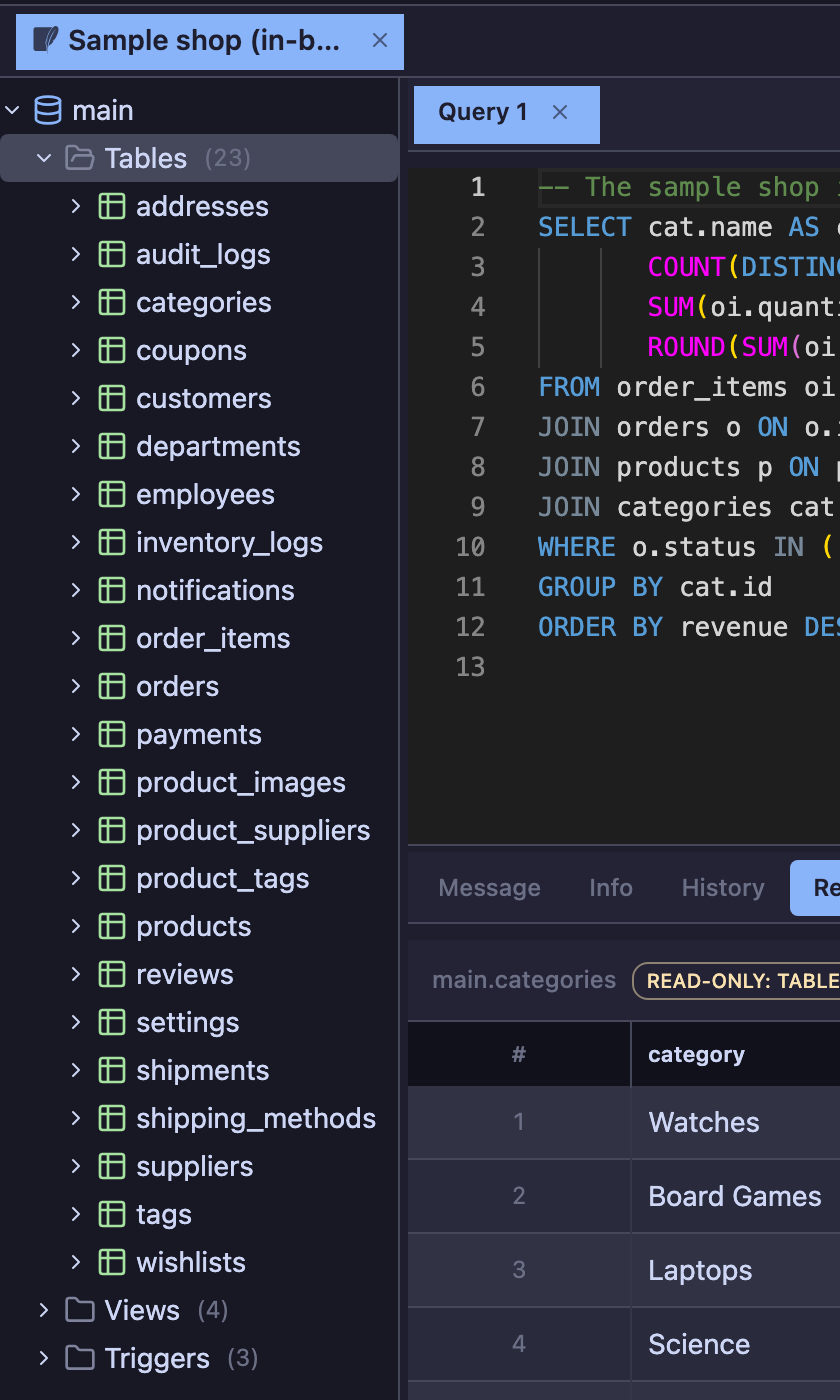
Right-click any node for the actions that make sense there:
- Open Table — the data grid, with the row limit from your settings.
- Generate SQL — a SELECT, INSERT, UPDATE or DELETE skeleton built from the real columns and primary key, dropped at your cursor.
- Show Create / Alter — the object's DDL, or the table designer.
- Copy Table to… / Compare / Compare Data — see the sections below.
- Truncate / Drop — kept apart at the bottom of the menu, and both make you retype the object name.
SQL editor
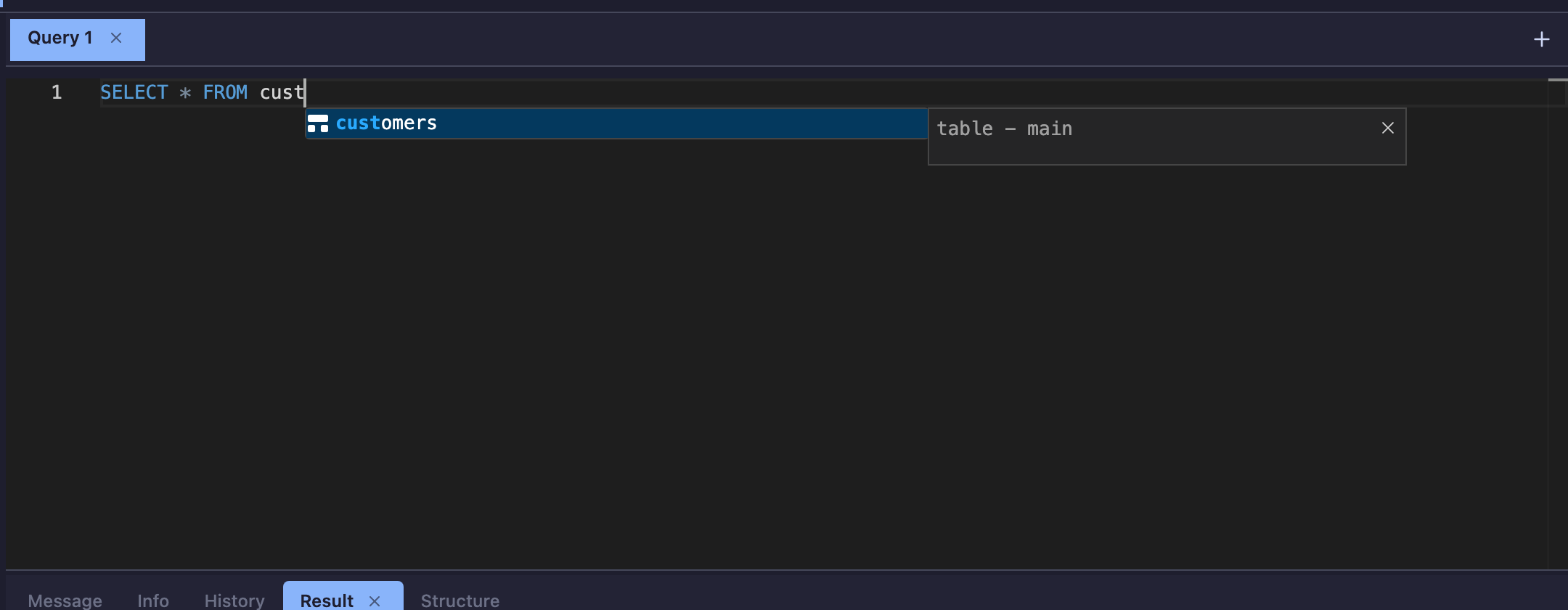
The editor uses Monaco, the editor behind VS Code, and is bundled with the app. Completion includes the current dialect's keywords and functions as well as tables and columns from the connected database.
Running statements
- Ctrl / ⌘ + Enter runs the selection, or the single statement under your cursor.
- F9 follows Settings › Safety › Execute scope — the whole script by default.
- Ctrl / ⌘ + Shift + Enter always runs the whole script.
Scripts are split by a real parser, not by semicolons: BEGIN … END bodies stay intact, and the client-side DELIMITER command, PostgreSQL $$ dollar quoting, SQL Server GO batches and Oracle PL/SQL blocks ending in / are all understood. Each statement is classified, which is what makes the row cap, the destructive confirmation and the dry run possible.
Row cap
Unbounded SELECTs get a LIMIT (or TOP / FETCH FIRST, depending on the engine) so an accidental SELECT * on a huge table cannot flood the browser. The default is 500 rows and the result says when it was applied. Statements that already limit themselves are left alone.
History and local snapshots
The History tab lists what you ran; Query › Local History keeps snapshots of each editor tab's text, so text you replaced or executed can be brought back. Password literals are masked before anything is stored, and you can turn persistence off entirely in the settings.
Result grid
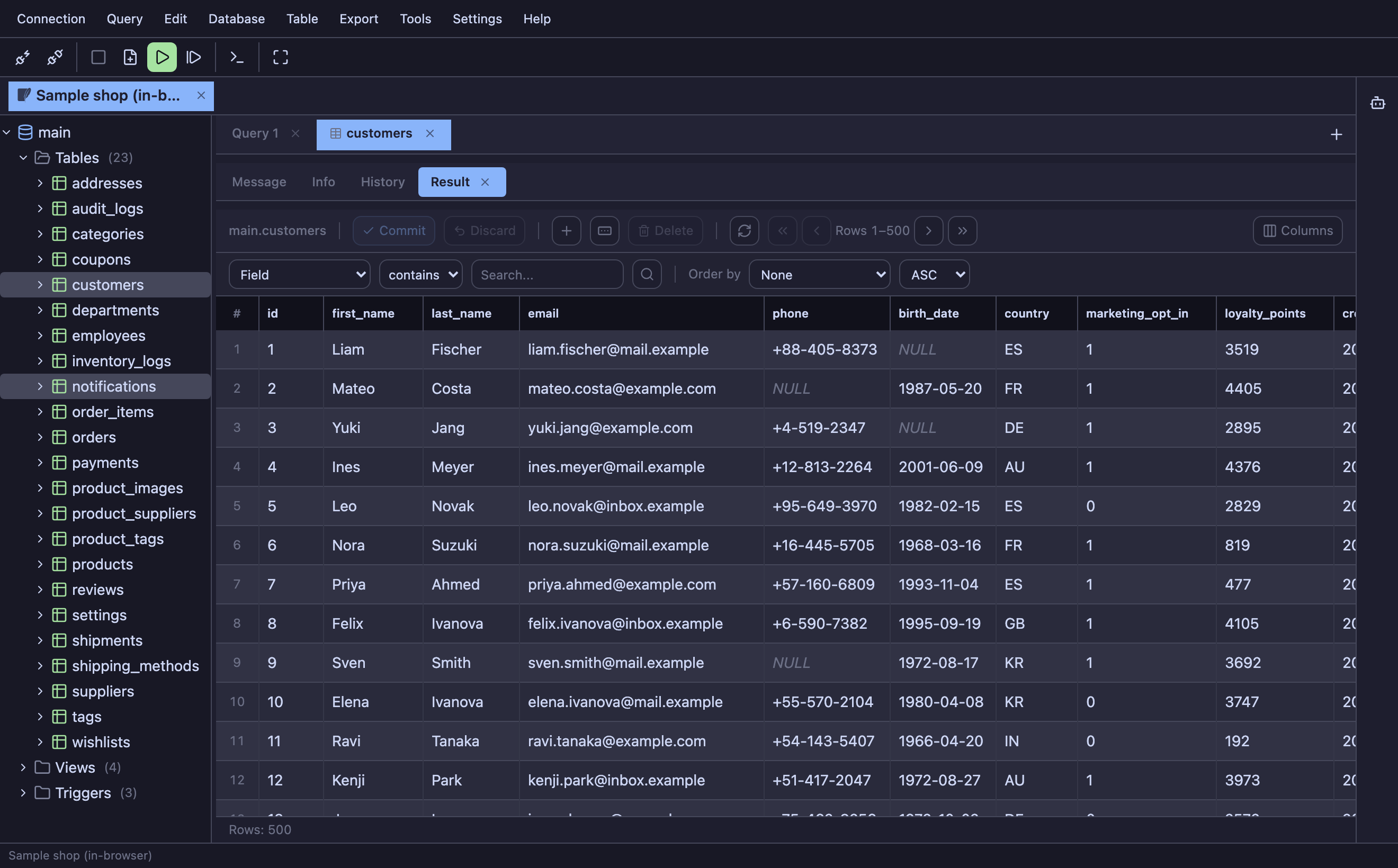
The grid renders only the visible area, so hundreds of thousands of cells still scroll smoothly. If every result column comes from one table with a primary key, you can edit values in place.
Editing
Double-click a cell to edit it (or press F2 / Enter on the cell you last clicked), use Add row or Add with form for inserts, and select rows to delete them. Nothing runs until you press Commit, and by default Planche shows you the generated UPDATE / INSERT / DELETE statements first. Discard throws the pending edits away.
Selecting and copying
Text in the interface cannot be selected by dragging, so dragging across the grid never leaves labels highlighted. Rows are selected by clicking: click one row, Shift-click another to take everything between them, ⌘ / Ctrl-click to add or remove single rows. Whatever you then choose in the cell menu applies to all selected rows.
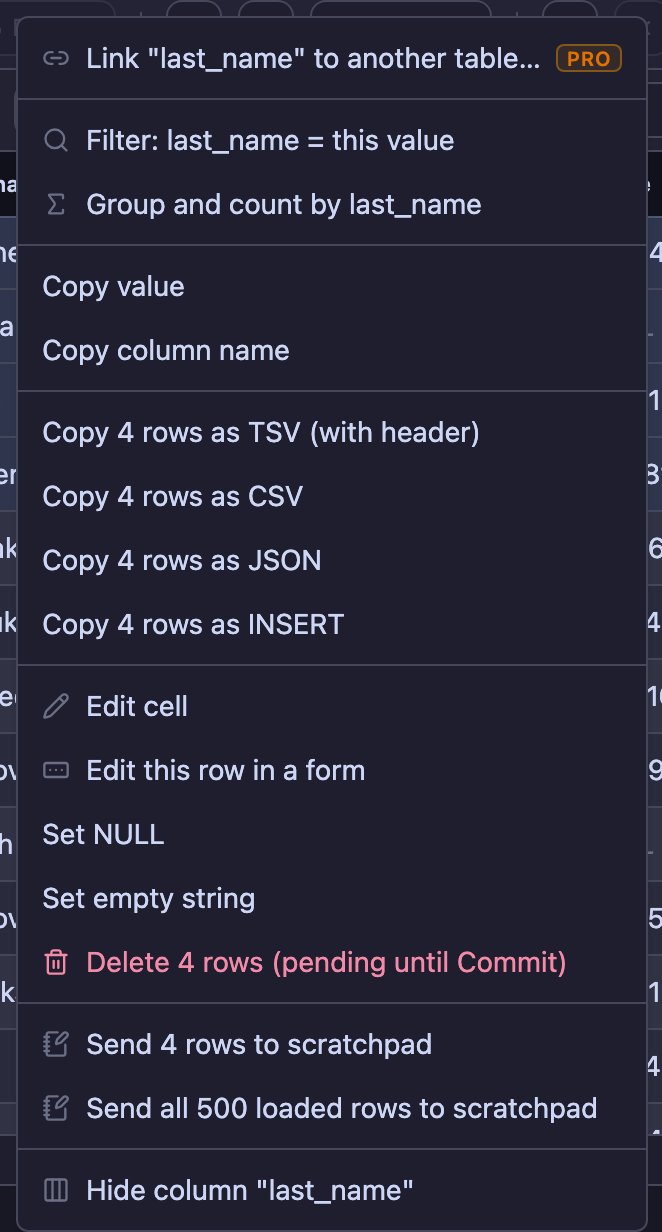
- Filter: column = this value — reloads the table filtered to that value (exact match).
- Copy — the cell, the column name, or the selected rows as TSV (with header), CSV, JSON or ready-to-run INSERT statements.
- Edit / Set NULL / Set empty string / Delete rows — all pending until Commit.
- Send rows to scratchpad — see below.
- Hide column — the column picker in the toolbar brings it back.
What changed since the last load
Refreshing a table tab compares the new rows with the previous load by primary key. Changed cells are highlighted (hover shows the previous value), new rows are marked, and a badge counts rows that disappeared — useful right after a deploy or a batch job. The comparison lives only in the tab; the × dismisses it.
Drill down through foreign keys
Where the connected database has a foreign key, Planche turns that column's values into links. Click one and the referenced row opens in a new tab, already filtered — no query to write, no id to copy.
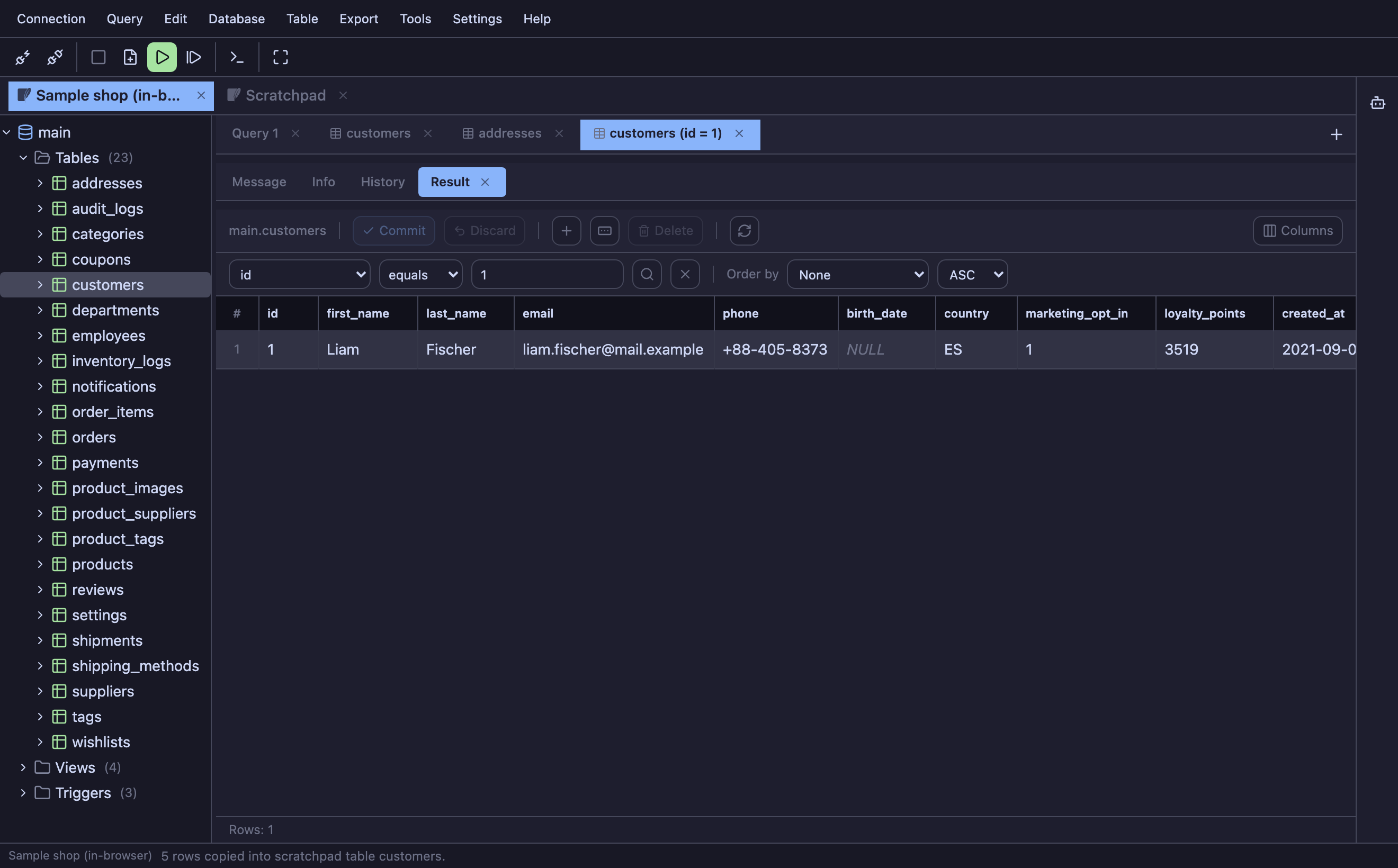
addresses opens customers, filtered to exactly that customer.This needs no setup: the foreign keys are read from the database when the grid loads. Hovering a link shows where it goes.
Link any two tables yourself
Many production schemas contain relationships with no foreign-key constraint: a column created without one years ago, a table moved into another database, or a service whose users live on a different server. You can declare those relationships in Planche; afterward, they can be followed like ordinary foreign keys.
Right-click any value in the column and choose Link "…" to another table.
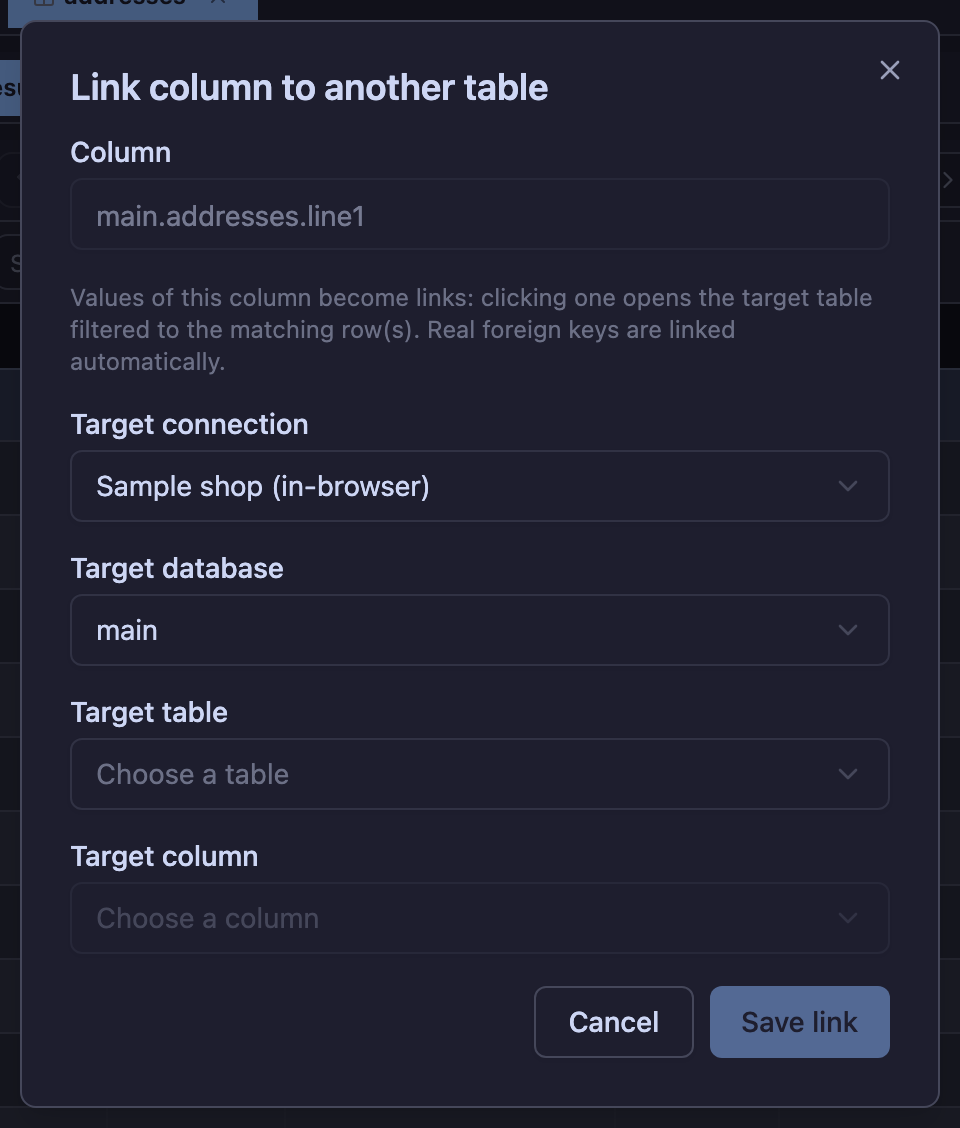
- Nothing is written to the database. The link is metadata Planche keeps for you, so you can do this on a database you only have read access to.
- The target may be anywhere you have open. Another database on the same server, or a different connection entirely — including a different engine. Linking
orders.user_idin MySQL tousers.idin PostgreSQL works; following the link switches to that connection and opens the filtered table there. - It survives. Links are stored per connection profile and come back after a reload.
- You can share them. Export › Export column links writes them to a JSON file; importing matches profiles by id, then by name, then by host, so a colleague on another machine gets the same navigation.
- They show up in the ERD as dashed relations, with a ghost entity when the target lives outside the diagram.
This is the part people miss most: a database with no foreign keys at all becomes navigable in a few minutes, and stays that way for everyone you share the file with.
Scratchpad
The scratchpad is an SQLite database that lives in your browser. Any grid can copy rows into it — one row, the selection, or everything loaded — through the cell context menu.
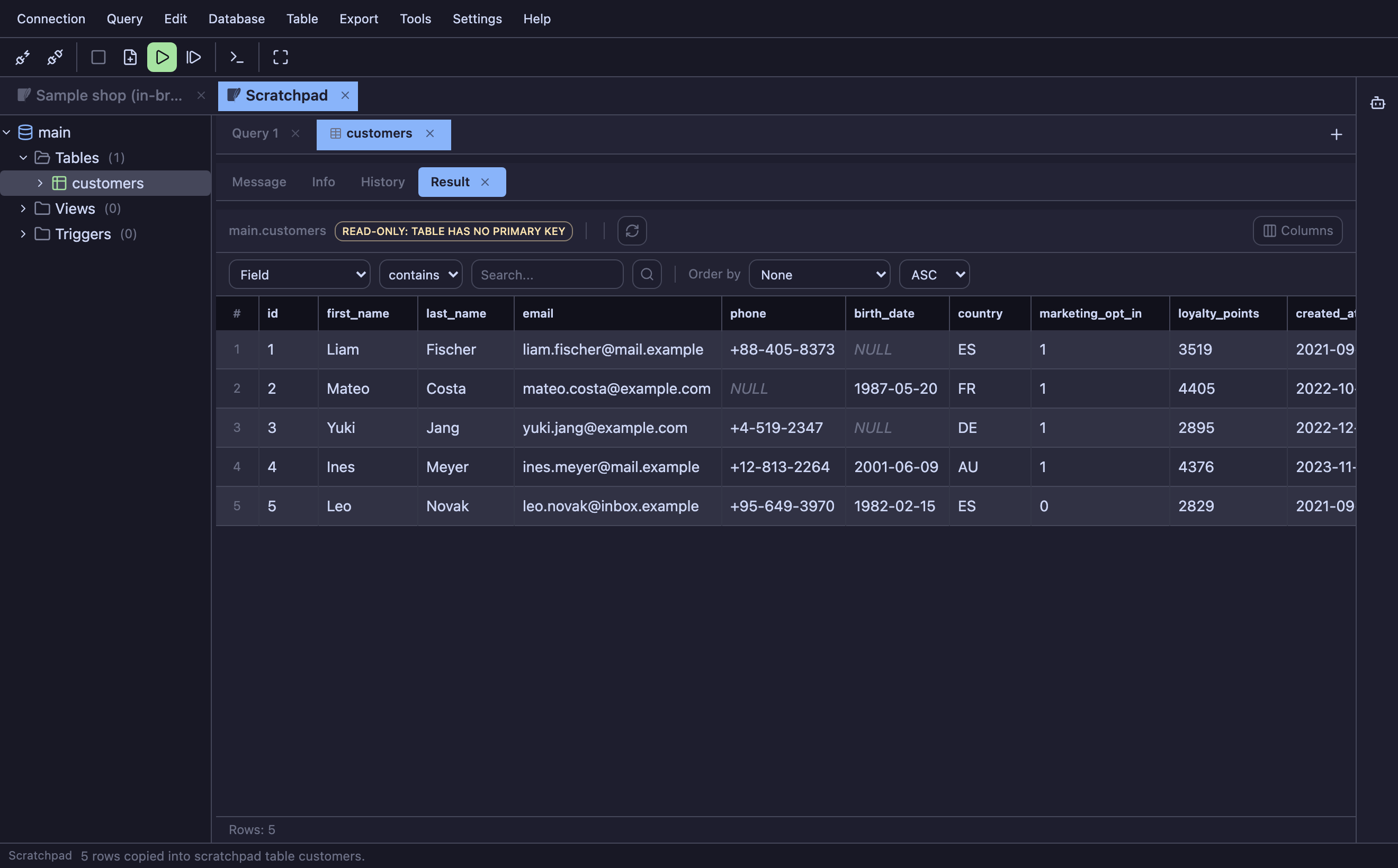
Columns are typed from the source types, and the table appears in the scratchpad's schema tree immediately. Because it is an ordinary browser SQLite connection you can query and edit it like any other database, and Connection › Save Database File writes it out as a .db file. It is cached locally, so it is still there after a reload. Nothing in the scratchpad is ever sent anywhere.
Open or focus it any time with Tools › Scratchpad.
Queries across connections
In a scratchpad query tab, reference a table from any open connection as "Connection name".database.table and join it with other tables:
SELECT o.id, o.total, u.email
FROM "Shop MySQL".shop.orders o
JOIN "User service".public.users u ON u.id = o.user_id
WHERE o.status = 'paid';
Before the statement runs, each referenced table is pulled into a local copy and the SQL is rewritten to use it, so SQLite does the join in your browser. A MySQL table and a PostgreSQL table can be joined this way with no server-side setup at all.
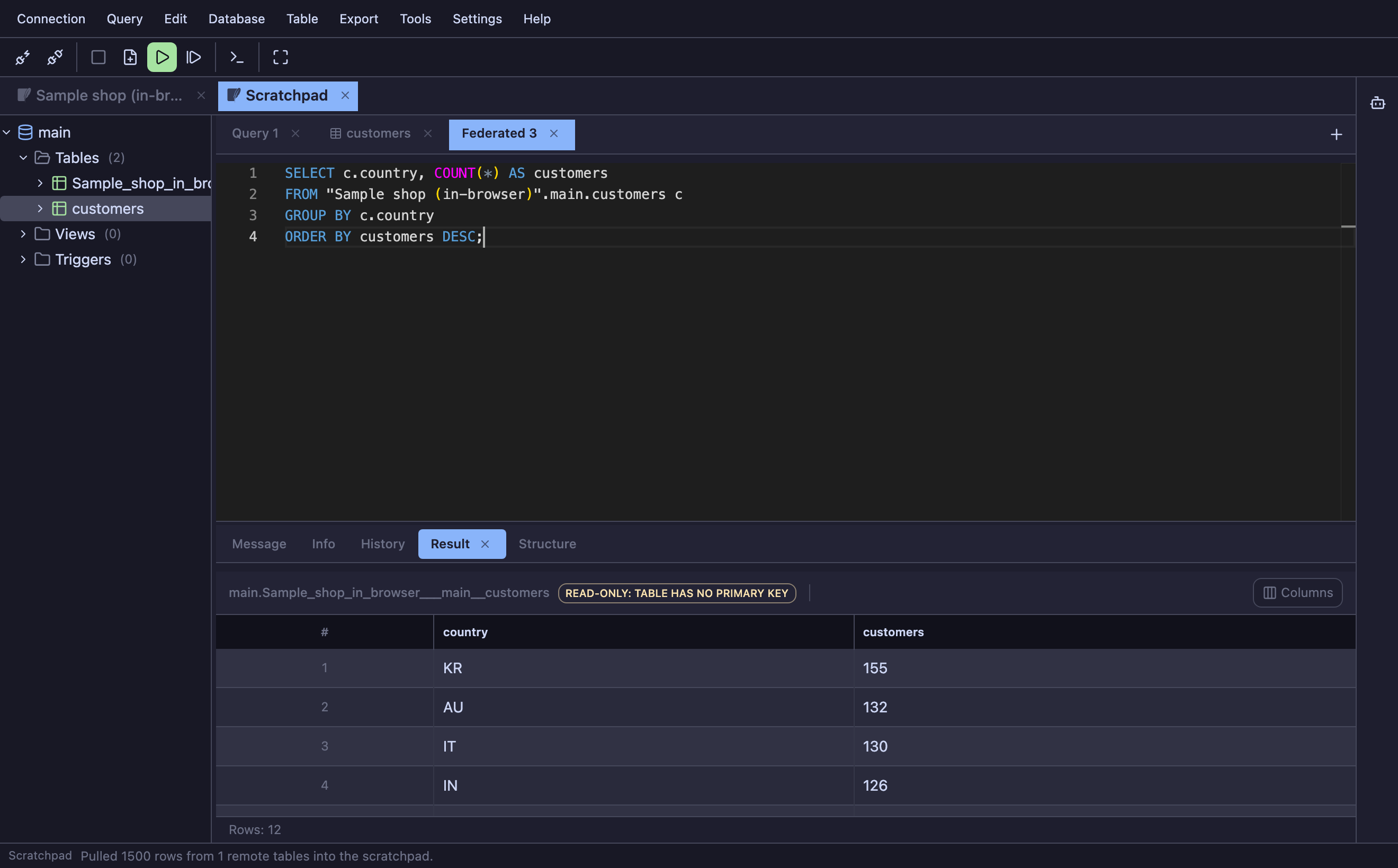
Copies are refreshed on every run and capped at 100,000 rows per table, with the progress shown in the footer. Tools › Federated query opens a tab pre-filled with the syntax and the names of your open connections.
Comparing and copying
These tools generate scripts but do not execute them. Review and edit a script before running it yourself.
Compare Schemas
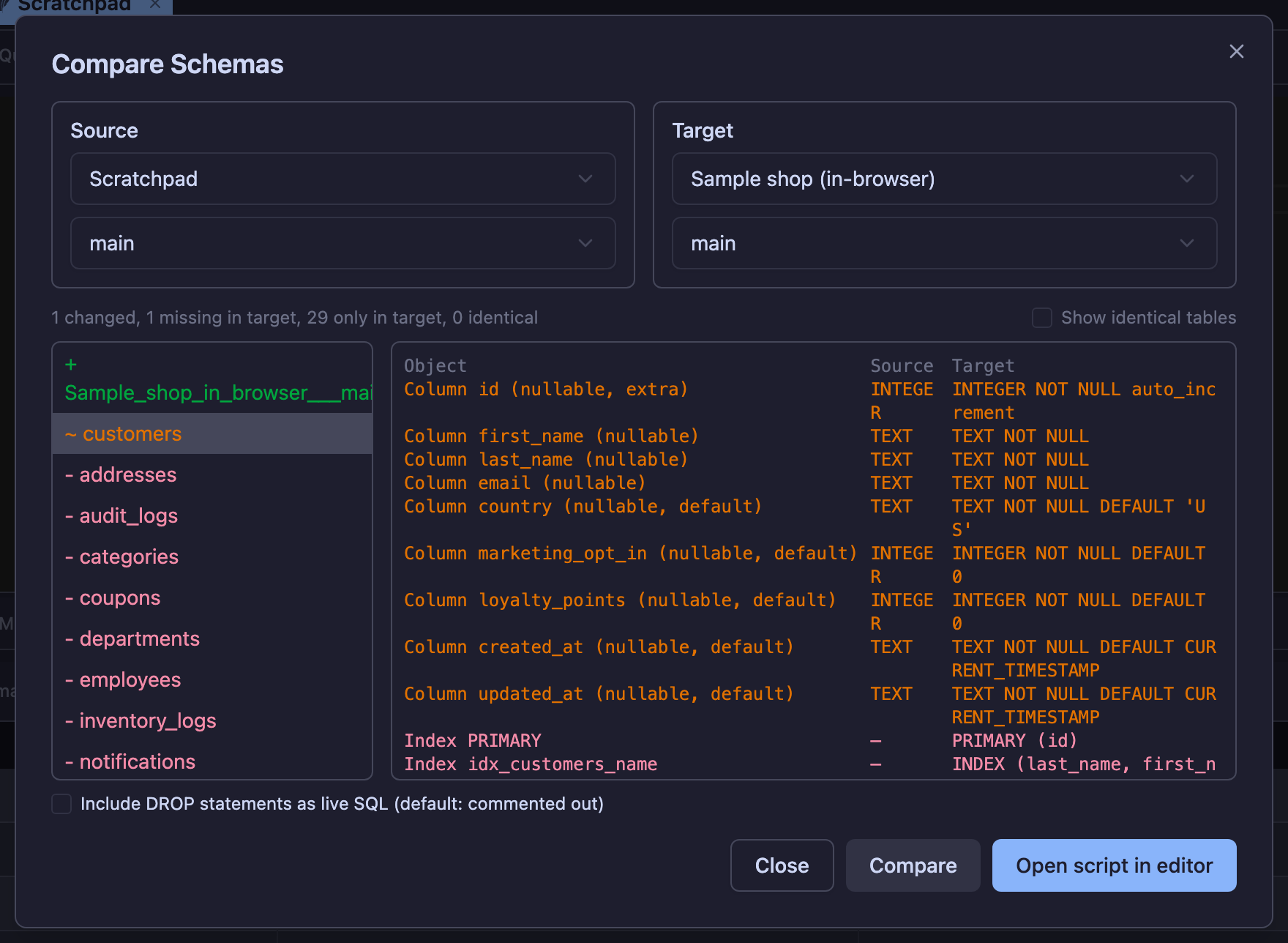
Database › Compare Schemas (or “Compare Table…” on a tree node) diffs tables, columns, indexes, views, procedures, functions, triggers and events between any two open connections. CREATE statements are compared with the noise stripped out — definer, SQL SECURITY, algorithm and the database qualifier — so only real differences show up. Open script in editor hands you the ALTER / CREATE statements in the target dialect, with every DROP commented out unless you tick the box.
Compare Data
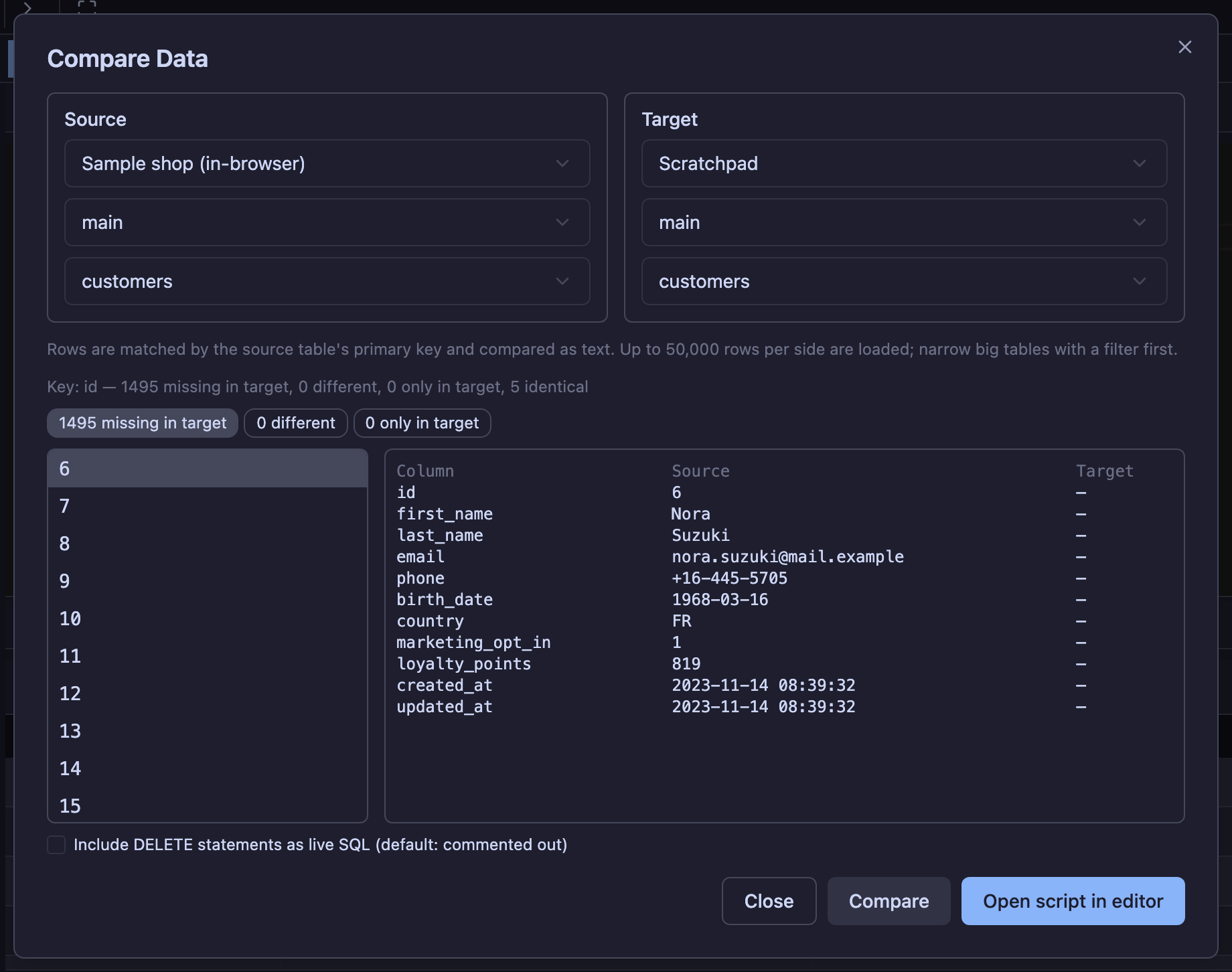
Database › Compare Data matches rows by the source table's primary key and compares values as normalized text, so the different ways drivers return dates, decimals and JSON do not produce false differences. You get the rows missing in the target, the rows that differ (column by column) and the rows only the target has, plus an INSERT / UPDATE / DELETE script — DELETEs commented out by default. Up to 50,000 rows per side are loaded, with progress shown.
Copy Table to…
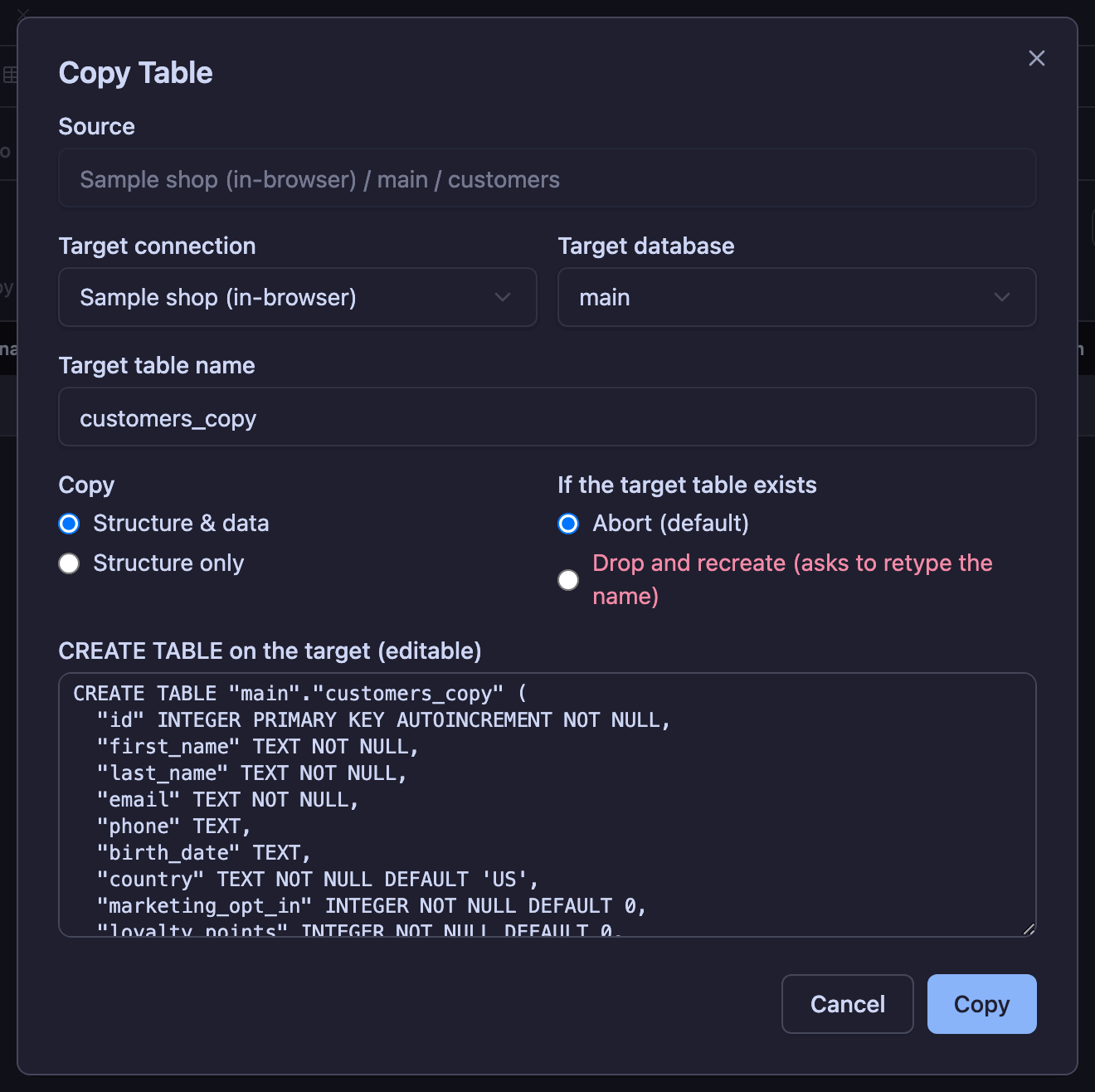
Right-click a table and choose Copy Table to… to recreate it in any other open connection or database. Planche generates the CREATE TABLE statement in the target dialect and shows it for editing, so you can adjust types before copying a MySQL table to PostgreSQL. Rows are transferred in batches with a progress bar. If a table of the same name already exists, the copy stops. Choosing “Drop and recreate” requires you to type the table name first.
AI assistant
The panel on the right does not write SQL for you to copy. It works the app: it reads the schema, opens a query tab, runs what it wrote there, and stops for your approval before anything is changed. Open it from the rail on the right edge, or Tools › AI assistant.
How a question becomes an answer
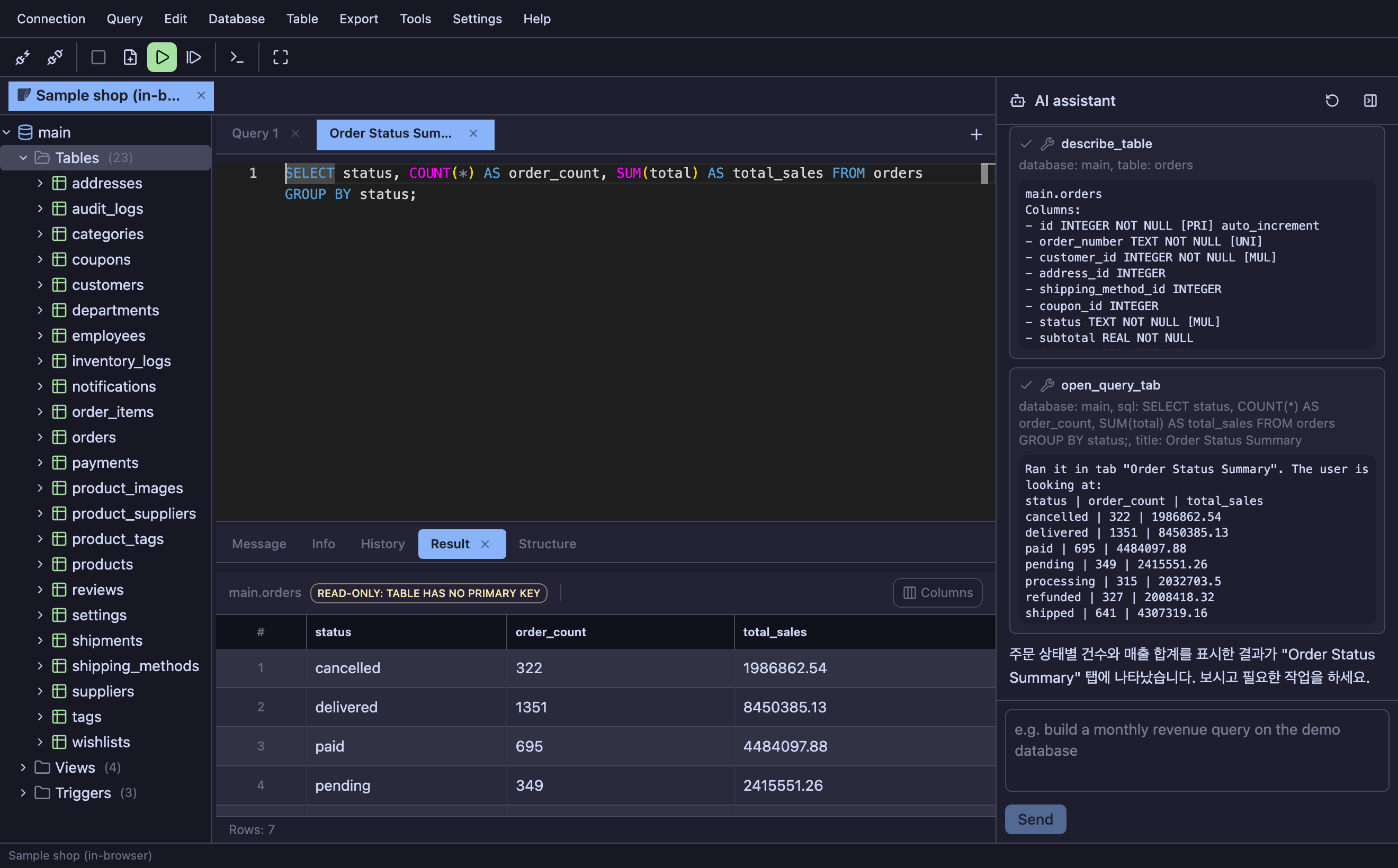
Ask in your own language. The model cannot see your screen, so it starts by asking the app what is open and reading the columns of the tables it plans to use — every call it makes appears as a card, so what the query was built from is visible rather than claimed. The finished statement opens in a query tab and runs there, which means you can watch it, cancel it, and sort or export the result like any other.
A statement it wrote is planned by the engine first. A column that does not exist comes back as an error the model reads and corrects, so a broken query never reaches your screen; a plan that turns out to be a full scan of a large table asks you before it runs.
What it will not do
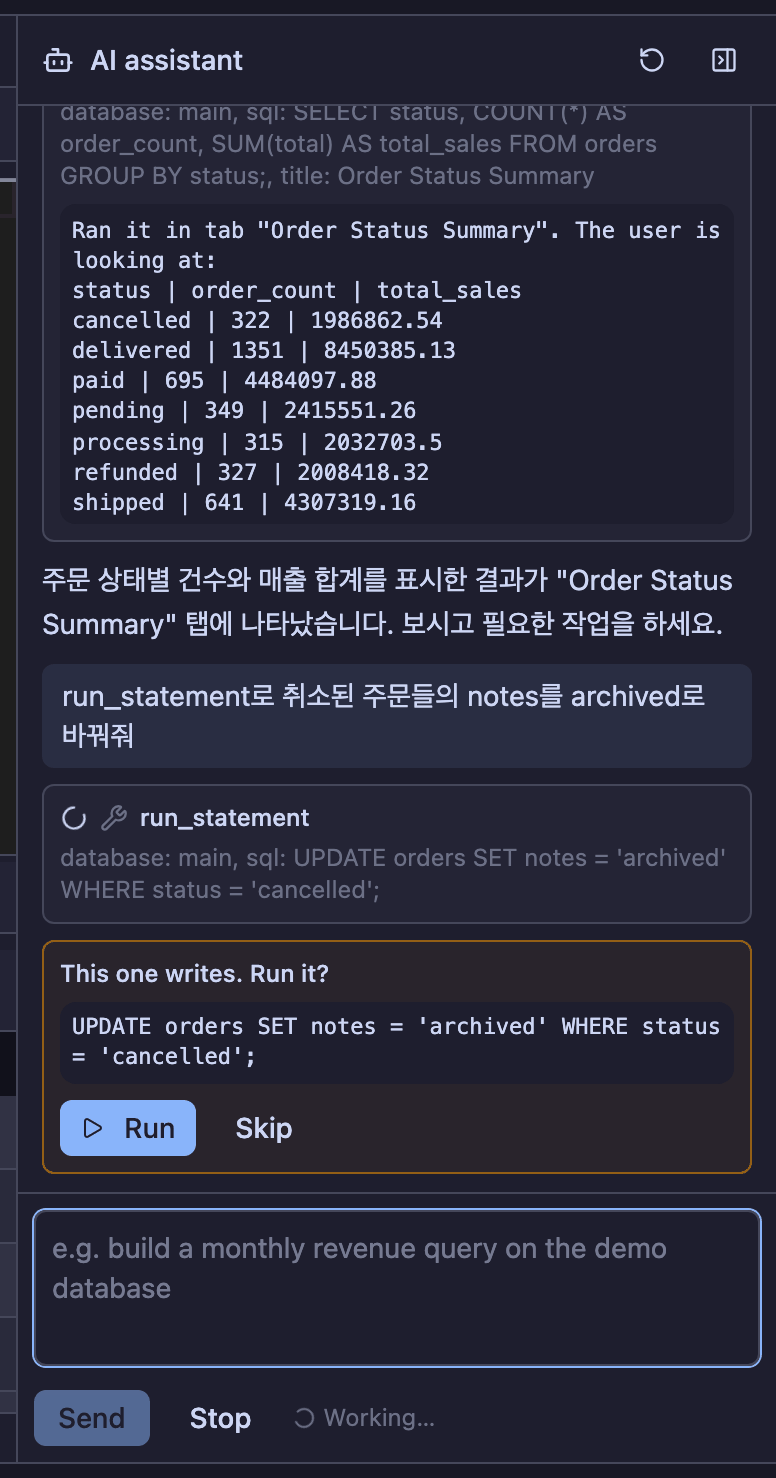
- It works on one connection — the one you have open. There is no argument to name another, and no tool to open or close one. You point it at a database by using that database.
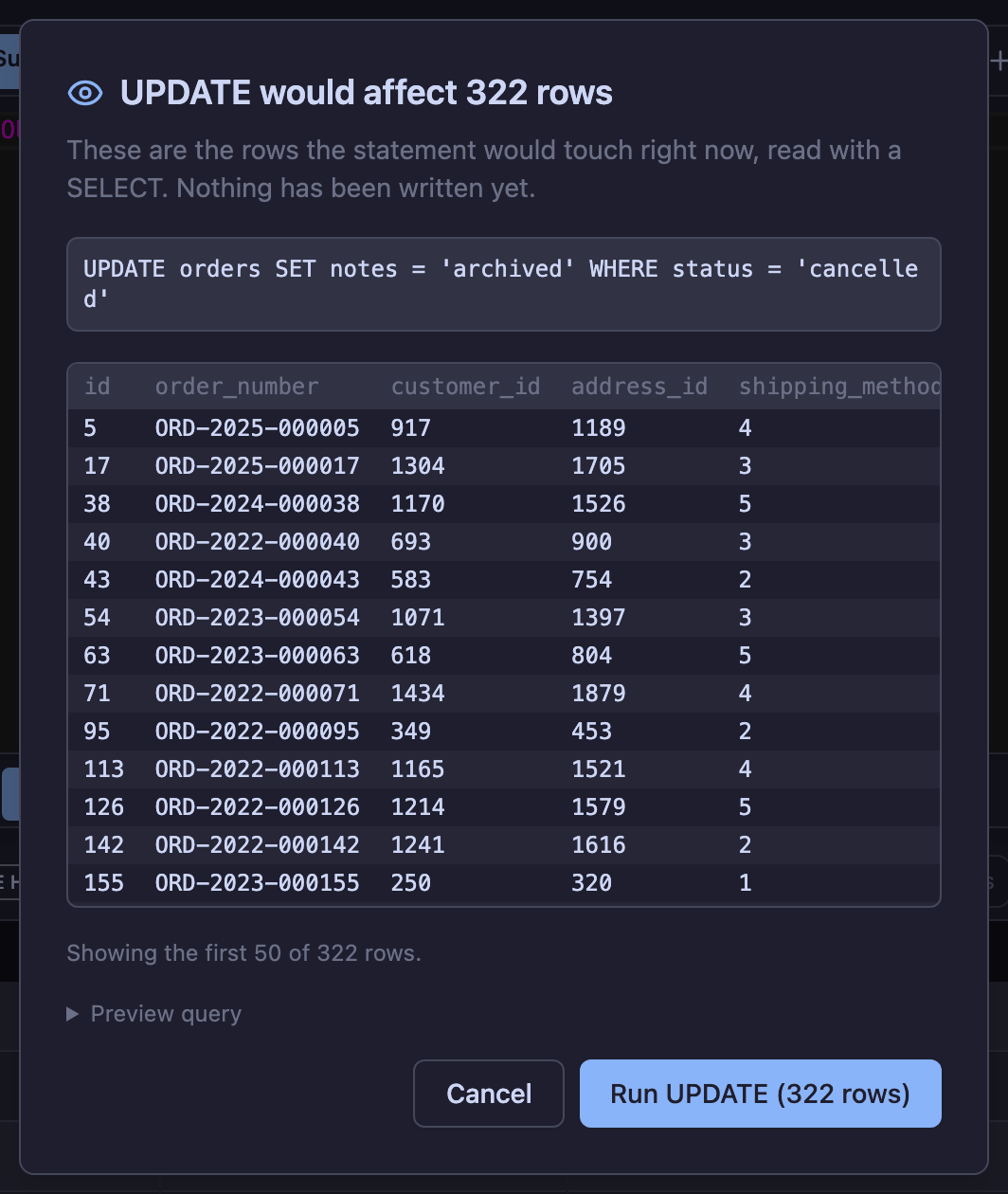
DROPandTRUNCATEnever run — not with your approval, not phrased differently, not hidden after a semicolon. It can write one into a tab and tell you what it destroys; running it is yours.- Writing asks first — and then goes through the same guard rails a statement you typed does: the dry run showing how many rows change, the destructive confirmation, the read-only refusal.
Where the model comes from
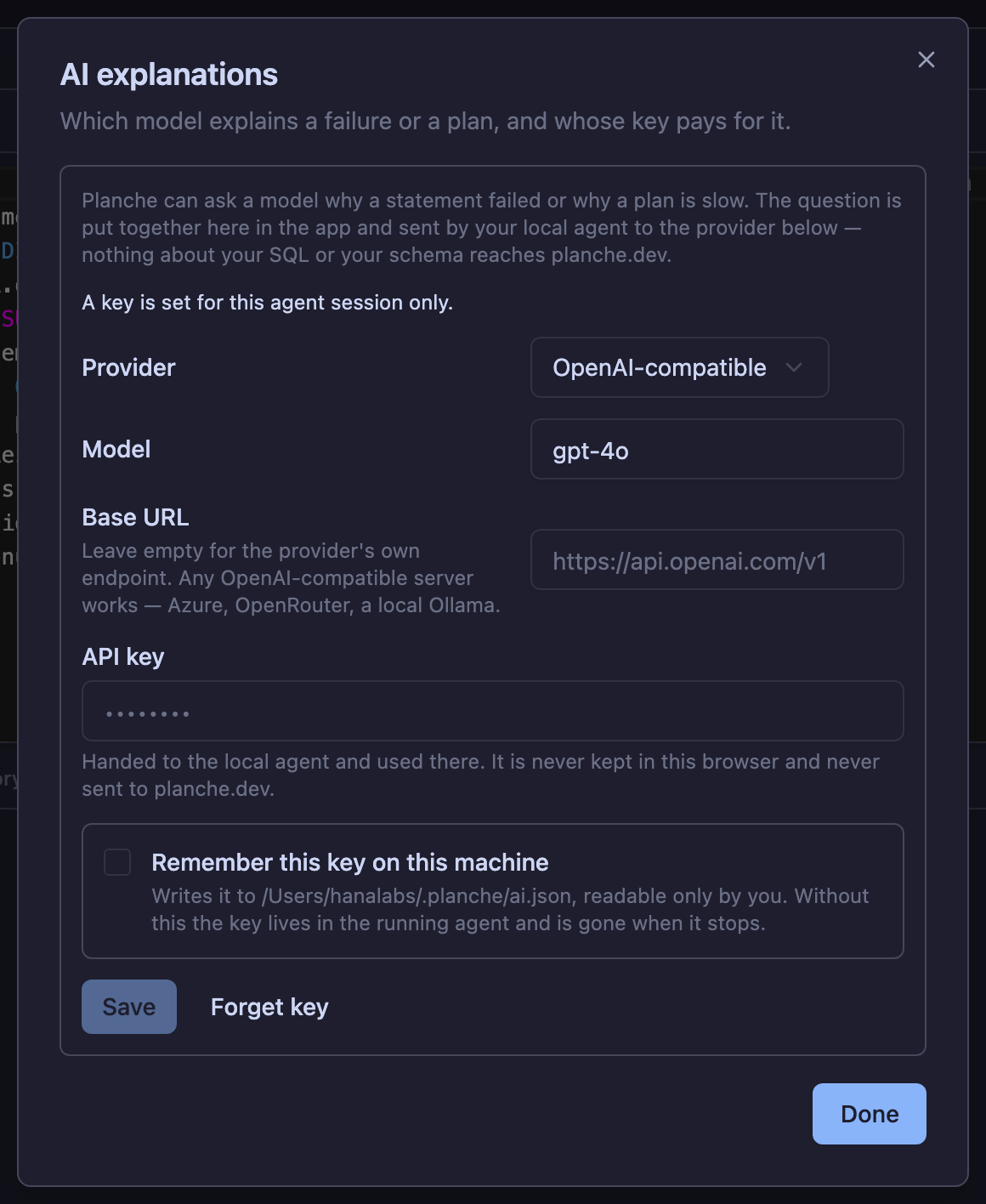
Settings › AI. The key is handed to your local agent and used there; it is never kept in the browser and never sent to planche.dev, and neither is your SQL or your schema.
- An API key — Anthropic, an OpenAI-compatible endpoint, or Gemini. Saving it is a choice, and the file it would be written to is named before you make it.
- This machine's login — after
ant auth loginthe SDK finds the credential itself, so there is nothing to paste. - A local CLI — Claude Code or Codex, already installed and signed in. No key at all.
Letting another agent drive Planche
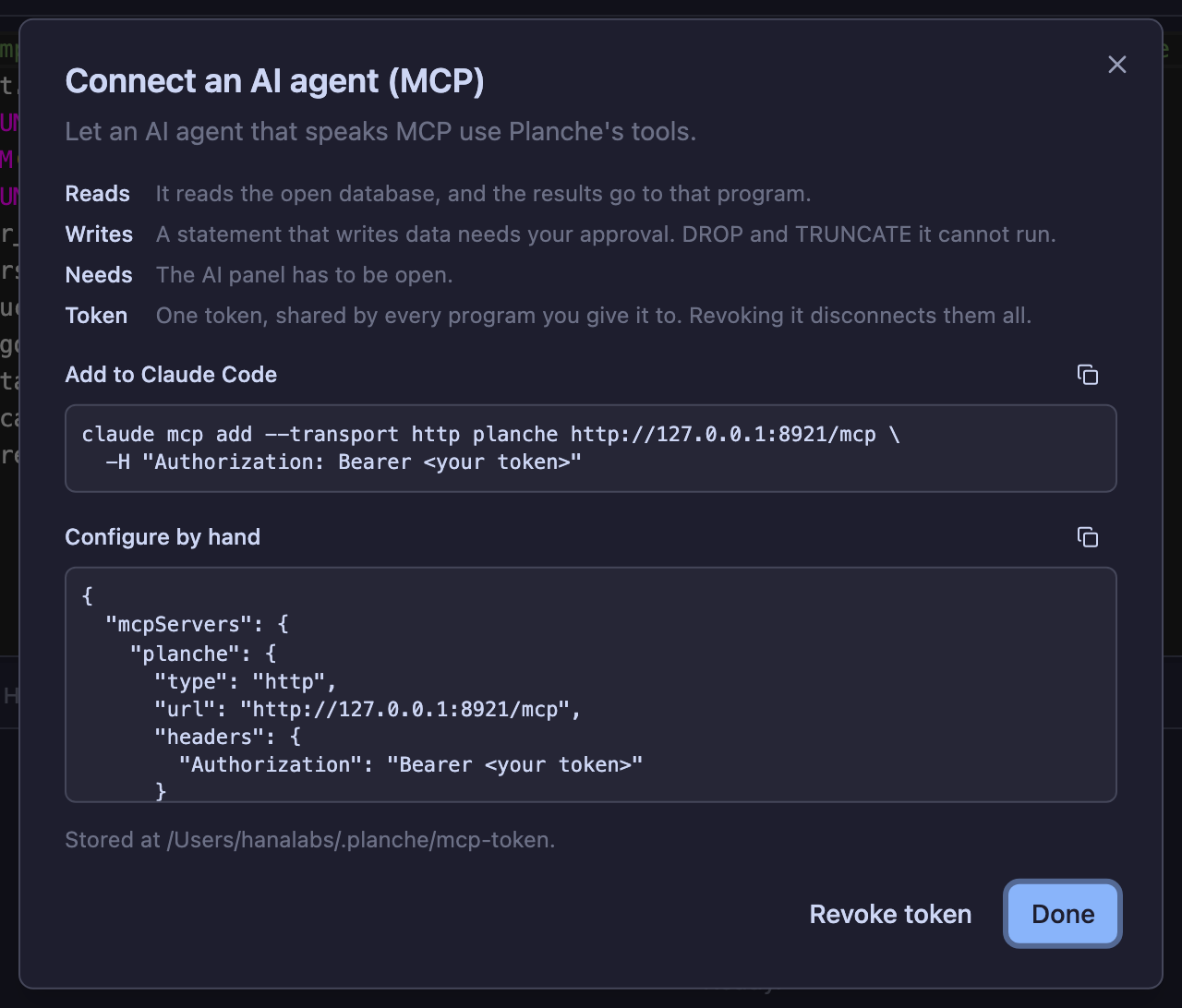
Help › Connect an AI agent hands you the configuration for anything that speaks MCP over HTTP, so an agent in your editor can use these same tools. The calls run in the browser tab, under the same guard rails, and a write asks you there and is marked as coming from outside. The token it gives you reaches that one endpoint and survives restarts; revoking it disconnects every program you gave it to.
Safety
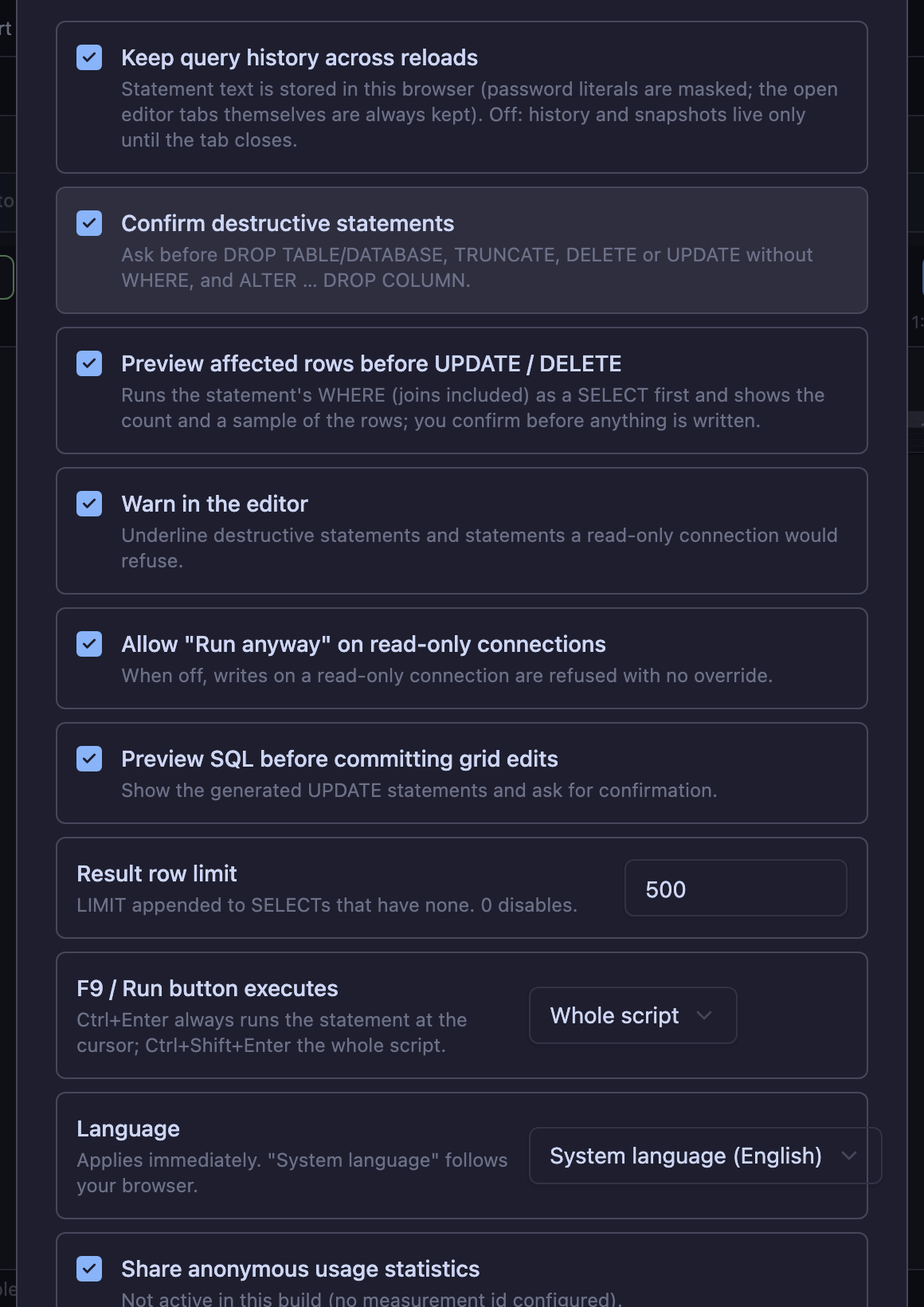
On a production database, a DELETE without WHERE or an unintended UPDATE can cause serious damage. Planche provides configurable checks before execution.
Dry run: see the rows before you change them
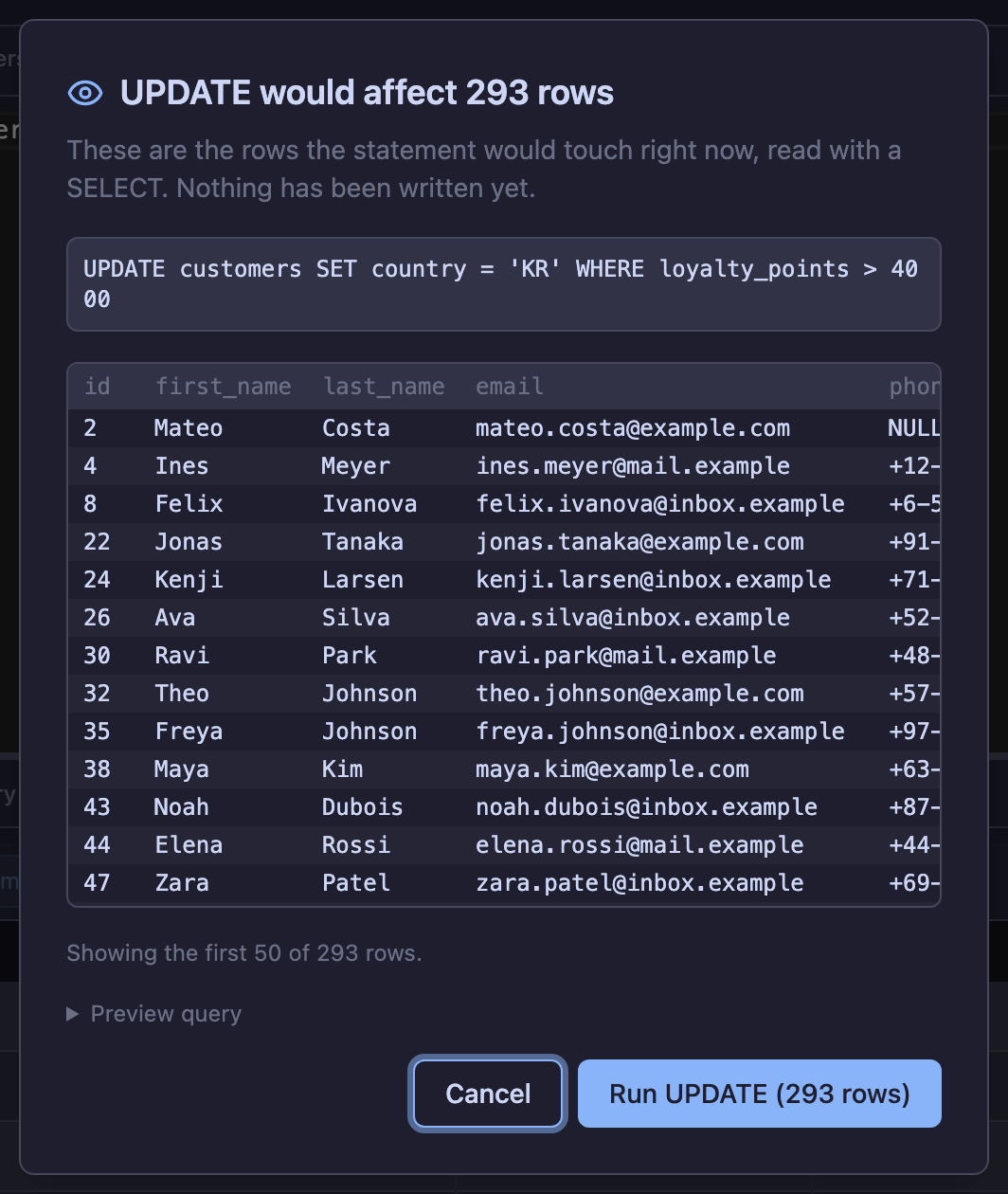
Before an UPDATE or DELETE runs from the editor, Planche rewrites it as a SELECT of the affected rows. It then shows the count and a sample. It handles join forms for each dialect: MySQL's UPDATE a JOIN b, PostgreSQL's UPDATE … FROM and DELETE … USING, SQL Server's UPDATE alias … FROM, and Oracle's correlated subqueries. A statement that cannot be rewritten safely runs without a preview.
Other safeguards
- Destructive confirmation —
DROP,TRUNCATE, andDELETE/UPDATEwithout aWHEREask first and list exactly what will run. Dropping a table or database from the tree also makes you retype its name. - Read-only connections — writes are refused before they reach the database.
- Grid commit preview — the generated statements are shown before your edits are written.
- Manual transactions — nothing is committed until you say so.
- Environment color — production looks different from staging.
ERD
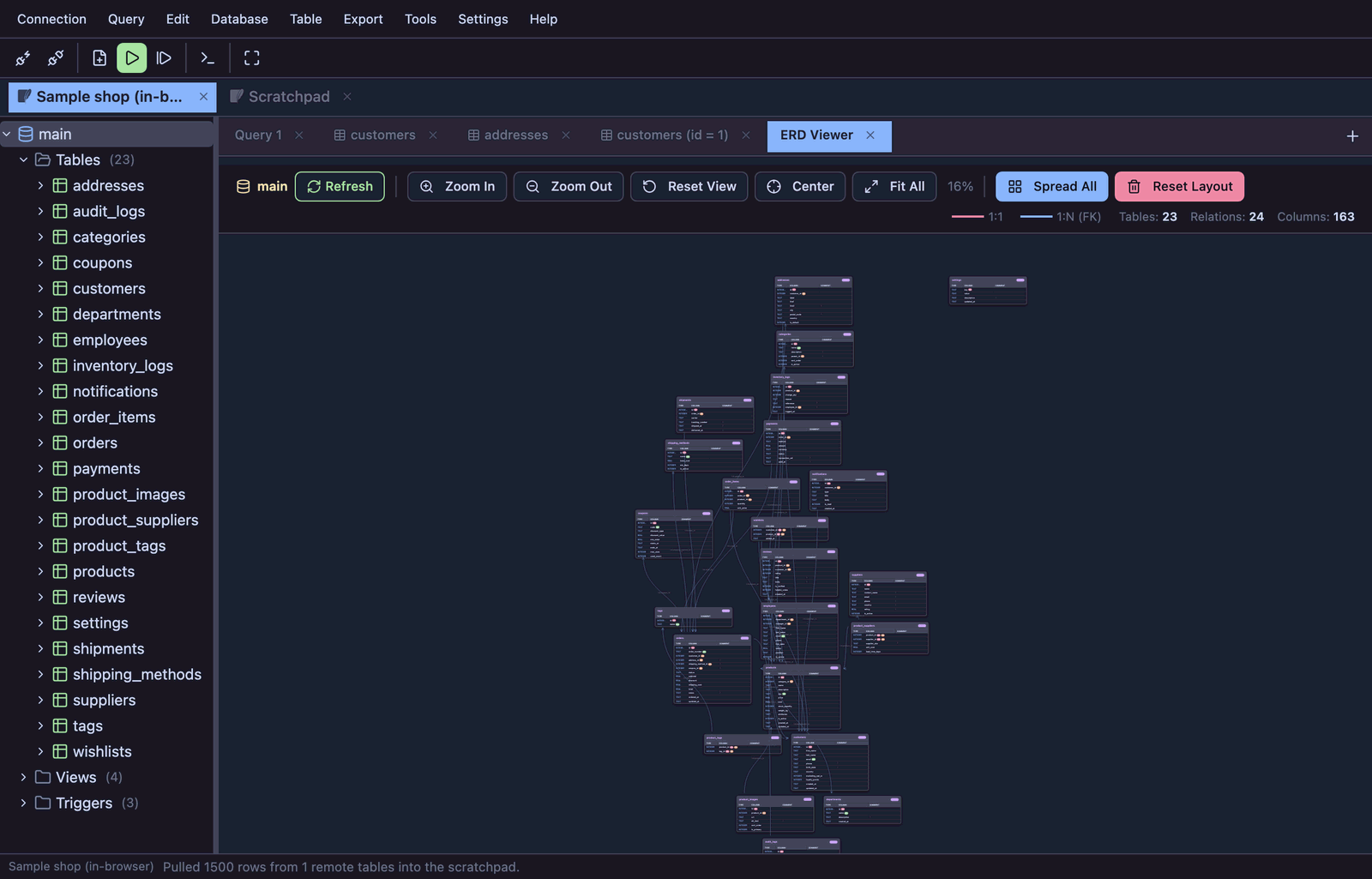
Tools › View ERD creates an entity relationship diagram from the selected database's foreign keys. It uses crow's-foot notation, and you can move entities and resize columns. Layouts are saved per database.
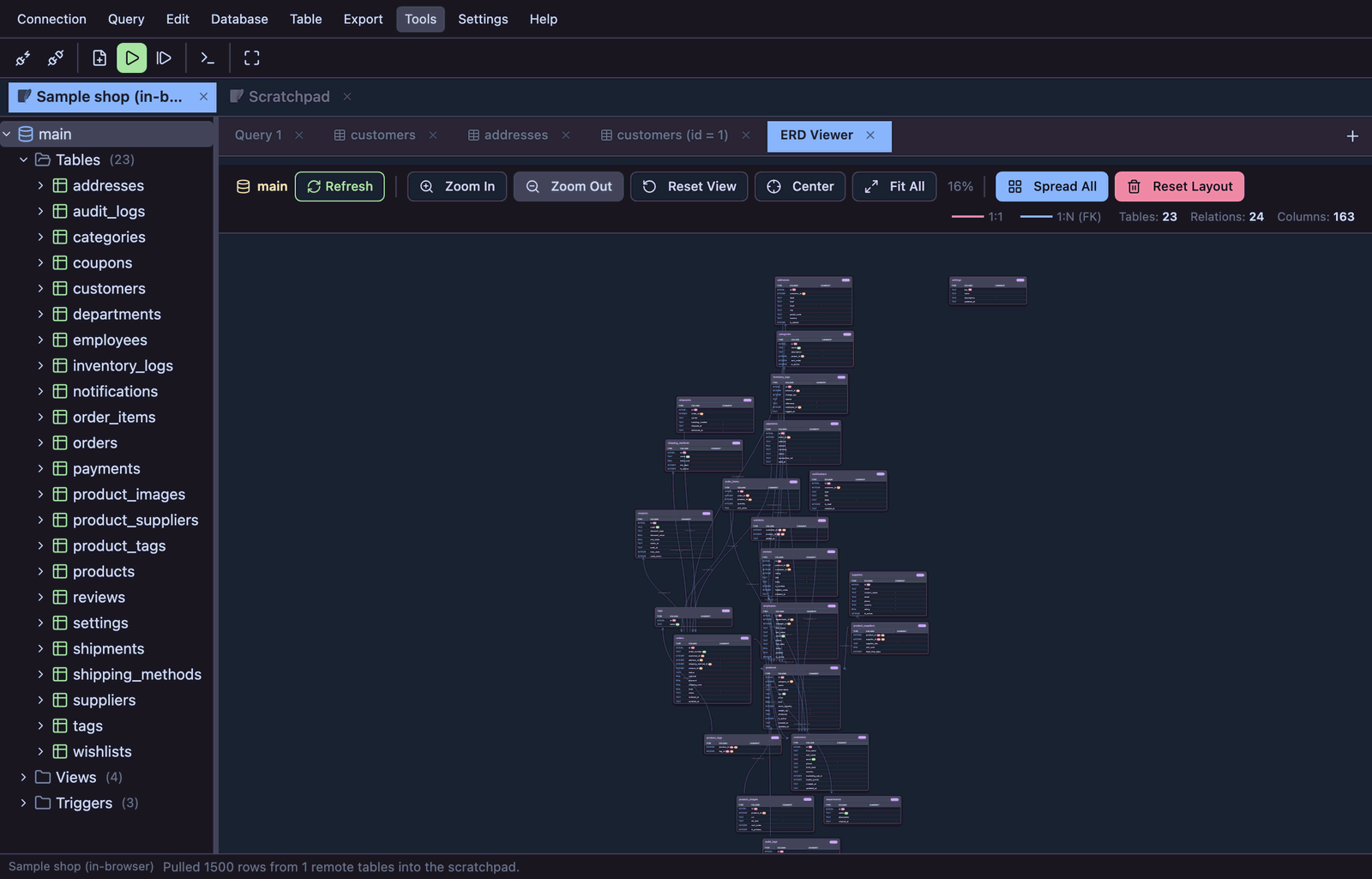
Column links you defined yourself appear as dashed relations. When a link points at a table outside the diagram — another database, or another connection — a ghost entity is added next to the source so the relationship is still visible.
Table design
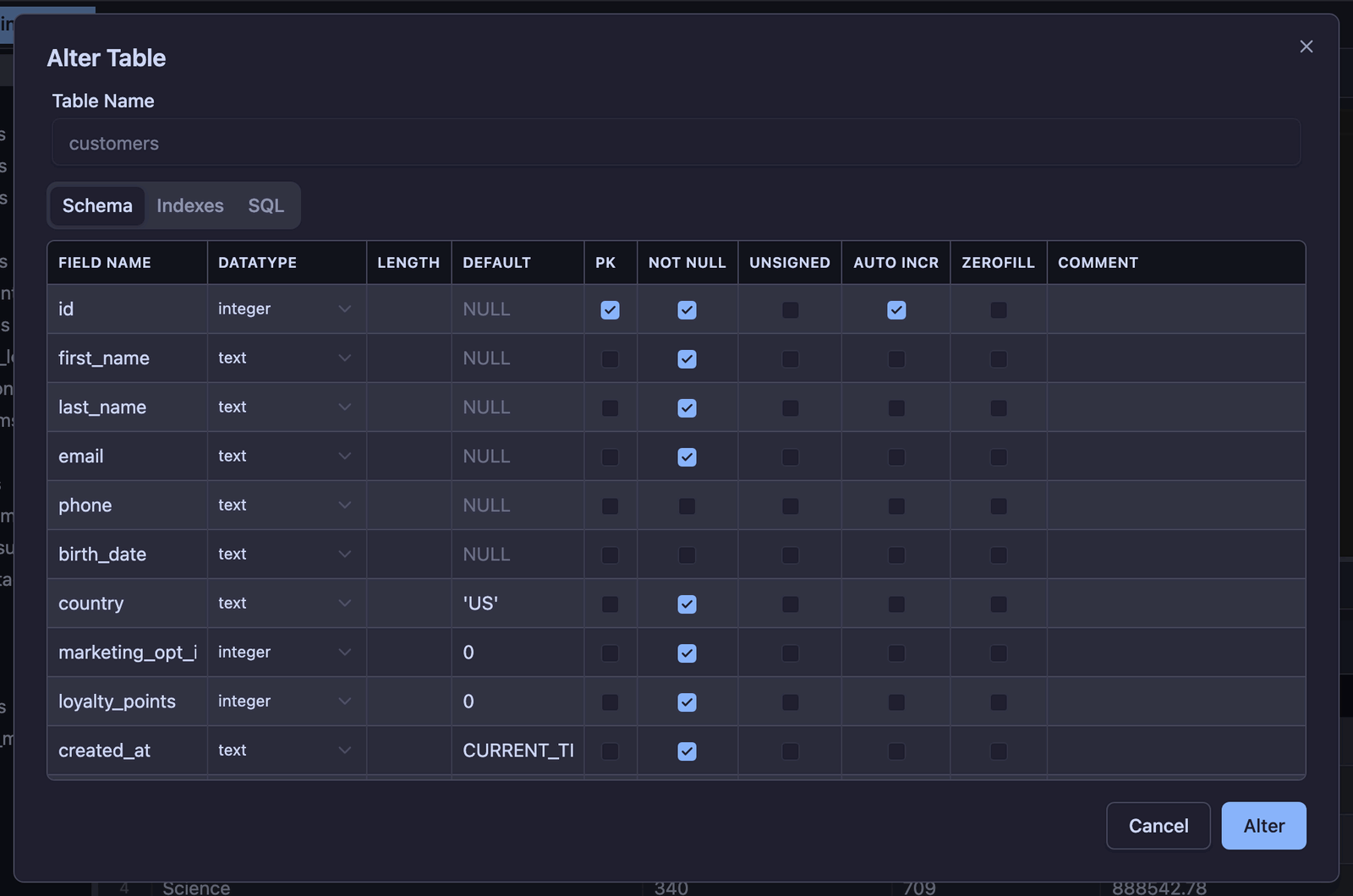
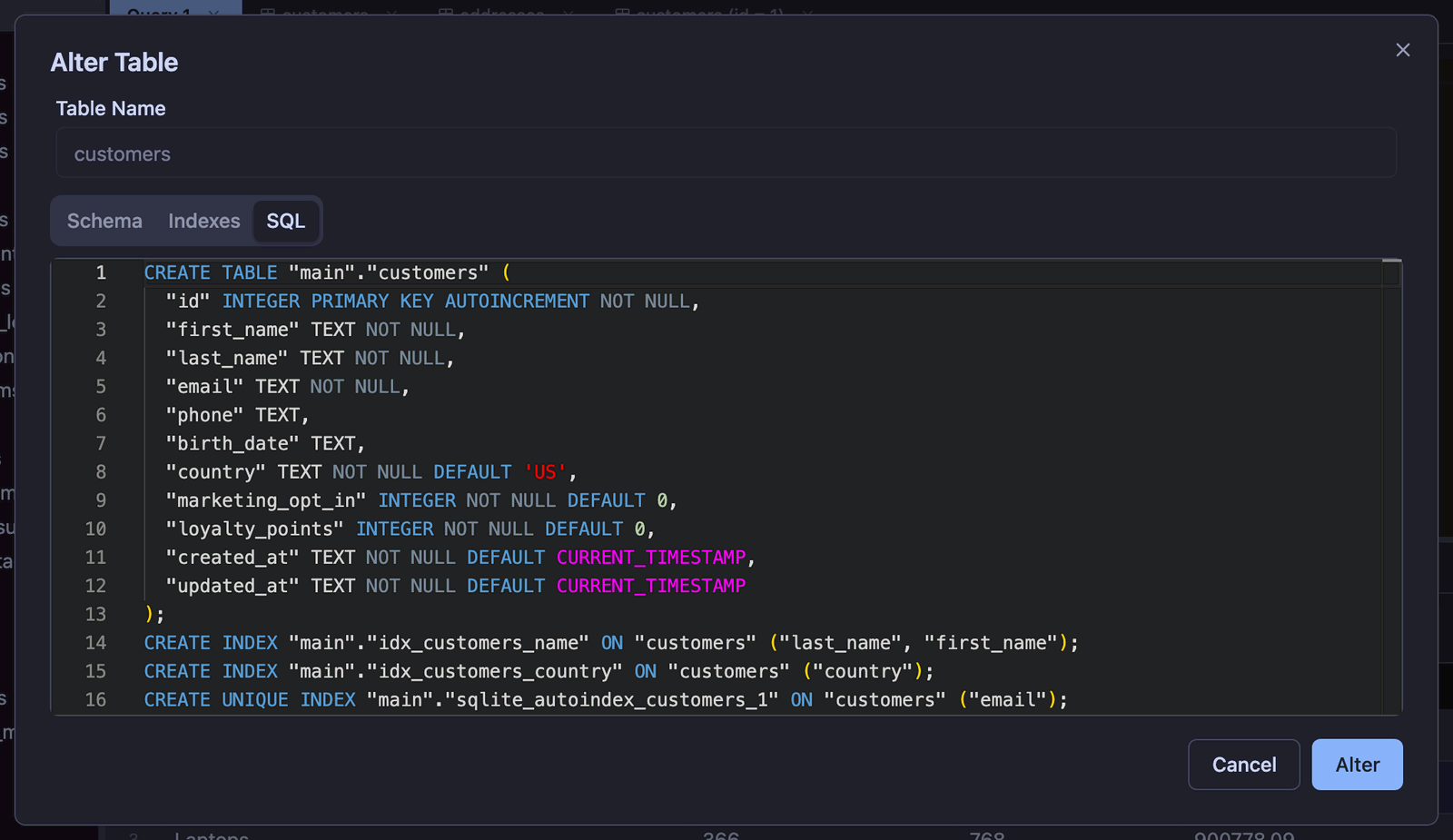
Create Table and Alter Table open a designer for columns, indexes, and, where supported, storage properties.
The SQL tab shows the statement Planche would run, in your engine's dialect, updated as you type — a good way to learn a dialect, and a good way to check what you are about to do.
The Table and Database menus hold the rest: rename, duplicate structure, create and drop databases, and — where the engine supports it — user management, the process list, server variables and status.
Exporting
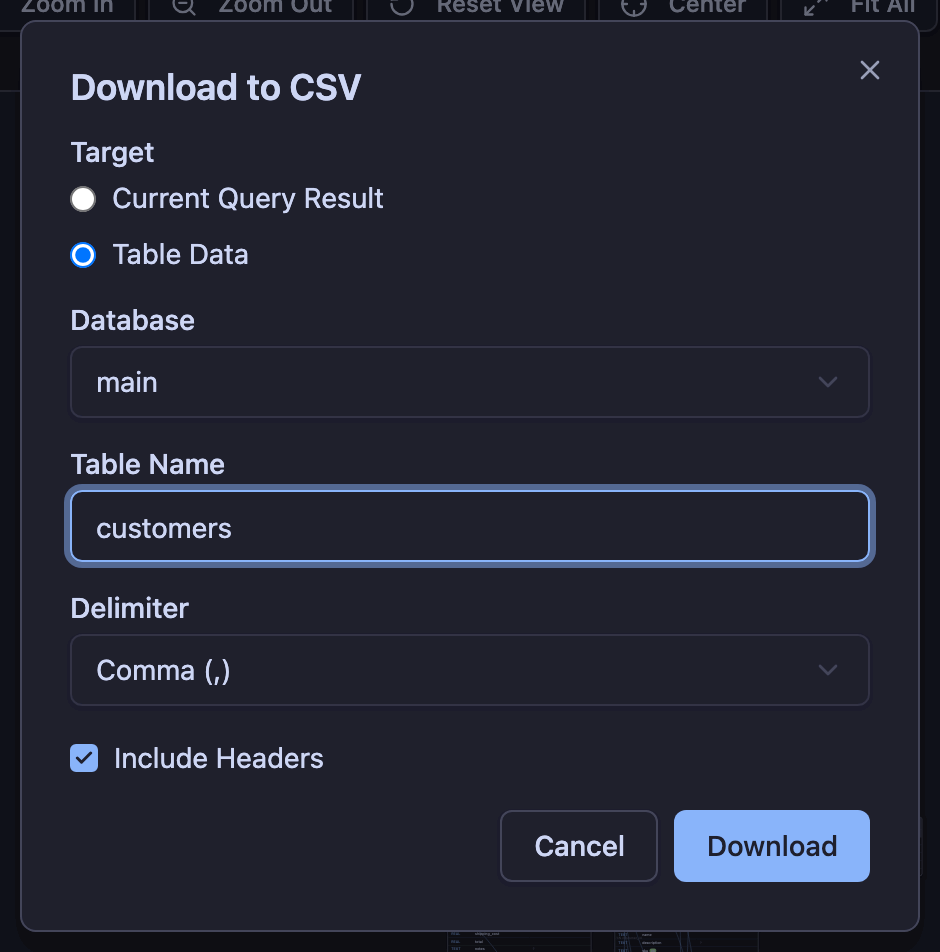
- Download to CSV — the current result, or a whole table. A table is read page by page, ordered by its primary key, and written straight to the file you pick (when your browser supports the File System Access API) so even a large table never has to fit in memory. Progress is shown and the export can be stopped.
- Schema to HTML — a self-contained page with the columns and indexes of the tables you tick.
- Export / Import column links — your virtual foreign keys as a JSON file, for another machine or a colleague.
- Copy as INSERT — from the grid, for moving a handful of rows by hand.
- Save Database File — for browser SQLite databases (including the scratchpad), writes the database back to disk.
CSV values that begin with =, +, - or @ are prefixed with an apostrophe so spreadsheets treat them as text, not as formulas.
Gateway mode (teams)
Gateway mode runs one agent on a shared host for the team. Database credentials stay in its configuration file; browsers select only a profile by name.
Terminal
npx planche --gateway gateway.json --addr 0.0.0.0 --allow-remote \
  --token "$(openssl rand -base64 24)" --public-url https://sql.example.com
gateway.json
{
  "name": "Acme staging",
  "profiles": [
    {
      "name": "Shop (read-only)",
      "driver": "mysql",
      "host": "db.internal",
      "port": 3306,
      "user": "reporting",
      "password": "…",
      "database": "shop"
    },
    {
      "name": "Shop (writable)",
      "readOnly": false,
      "driver": "postgres",
      "host": "pg.internal",
      "port": 5432,
      "user": "app",
      "password": "…",
      "database": "shop"
    }
  ]
}name— the gateway's name, shown in the connection dialog.profiles[].name— what the browser offers; it is the only part of a profile a client ever sends back.profiles[].readOnly— omit it and the profile is read-only; setfalseto allow writes.- Everything else is what the connection form asks for, under the same names:
driver(mysql,postgres,mssql,oracle,sqlite,d1),host,port,user,password,database— plusserviceNamefor Oracle,filefor SQLite, andaccountId/databaseId/apiTokenfor Cloudflare D1. Ansshblock works here too.
A profile reaches its database through a jump host by carrying an ssh block. The host and port above it are then resolved on the jump host, so they are usually 127.0.0.1:
gateway.json (one entry of profiles)
{
  "name": "Shop via bastion (read-only)",
  "driver": "mysql",
  "host": "127.0.0.1",
  "port": 3306,
  "user": "reporting",
  "password": "…",
  "database": "shop",
  "ssh": {
    "host": "bastion.example.com",
    "port": 22,
    "user": "deploy",
    "auth": "key"
  }
}authiskey,agentorpassword. Withkeyand noprivateKey, the agent uses theIdentityFilethat the gateway host's~/.ssh/confignames for that host, falling back to~/.ssh/id_*— the usual server setup, since the key then never sits in the config file.agentuses the gateway'sSSH_AUTH_SOCK;passwordneeds apasswordfield.privateKey, if you do set it, is the key contents (PEM / OpenSSH), not a path. Addpassphrasewhen the key has one.- The jump host's key must already be trusted on the gateway machine. Connect once with
ssh bastion.example.com, or pin it in the profile withacceptHostKeyset to itsSHA256:…fingerprint: in gateway mode a browser only sends a profile name, so it cannot answer the “unknown host key” prompt.
- Profiles are read-only by default, and read-only is enforced by the agent: it accepts a single
SELECT-shaped statement per request and puts the session itself in read-only mode where the engine supports it. The browser's guard rails are a convenience; this one is not bypassable from the client. - Requests that carry credentials instead of a profile name are refused.
- The agent serves the web app itself, so the page talks to its own origin and the strict content-security policy stays intact.
- It speaks plain HTTP: put a TLS reverse proxy in front of it and pass the public URL with
--public-url.
Teammates open that URL and paste the token once in the connection dialog's Configure box; the profiles then appear in the welcome screen and the connection manager.
Connection sync (end-to-end encrypted)
Connection sync keeps your connection profiles on planche.dev so another computer can use them. Everything is encrypted in your browser before it is uploaded, with a key the server never sees. Open it from Connection › Connection sync. It is a Pro feature from 1.0 and free in every 0.x release.
Turning it on
- Sign in with GitHub. This only tells the server which vault is yours.
- Choose a passphrase of at least 10 characters and type it twice. It is separate from your GitHub login on purpose: the server sees your login, so a login could never be what unlocks your data.
- Your profiles are encrypted and uploaded. On another computer, sign in with the same account and enter the same passphrase to unlock them.
How the encryption works
- The browser stretches your passphrase into a 256-bit AES-GCM key with PBKDF2-SHA256 (600,000 iterations, a random 16-byte salt). Every save uses a fresh 12-byte nonce.
- The key is created as non-extractable and kept only in the tab's memory. Neither the key nor the passphrase is written to disk or sent anywhere, so each new session asks for the passphrase again.
- The server stores one encrypted vault per account. Next to it, in the clear, are the values needed to rebuild the key (salt and iteration count), the nonce, a version number and the time of the last save. None of them reveals anything about the contents.
- For your account the server keeps your GitHub id and email address (or your GitHub username if the email is private), and a session for as long as you stay signed in.
What is in the vault
- Your connection profiles: hosts, ports, users, options, and the column links you set on them.
- Passwords, SSH passwords and private keys, but only for profiles with Save password turned on. A secret you chose not to keep on this computer is not kept on the server either.
- Not the sample database or the scratchpad: they are created on whichever computer needs them.
- Never query history, results or the data in your databases.
Two computers
Each profile carries the time it was last changed, and the newer copy wins when two vaults are merged. A deletion is remembered for 90 days, so a profile you deleted on one computer does not come back from the other. If two computers save at the same moment, the server refuses the second save, and that computer merges the newer vault and saves again instead of overwriting it.
If you forget the passphrase
The vault on the server cannot be decrypted by anyone, including us, so it cannot be recovered. On a computer that still has your profiles, choose Delete from server and turn sync on again with a new passphrase. Delete account removes the vault and your sign-in; profiles on your computers are never touched by either.
Sync runs only on planche.dev. The copy of the app served by your local agent does not contact the internet, so sync is not available there.
Privacy and security
- Your data never reaches us. planche.dev serves a static page; queries and results travel between your browser and your own agent (or stay inside the page, for browser SQLite).
- Credentials stay local. Profiles live in your browser's storage; passwords and SSH secrets are kept for the session unless you ask for them to be saved. The app refuses to talk to an agent that is not on loopback (or one that served the page itself), because a remote agent would mean sending credentials over the network.
- The agent authenticates everything. Every route but the health check needs a bearer token, repeated wrong tokens lock authentication briefly, only the app's origin may call it, and non-loopback binding requires an explicit opt-in and token.
- SQLite files are confined. The agent only opens files under your home directory (excluding hidden and system folders) or a directory you name, and refuses
ATTACHunless you enable it. - Query history is redacted. Password literals are masked before history or snapshots are stored, and persistence can be switched off.
- Analytics are anonymous and optional. Only categorical facts are counted — which engine, which dialog, whether a statement succeeded — never SQL text, host names, database, table or file names. One switch in Settings turns it off.
These safeguards reduce mistakes but cannot guarantee your data. Review important SQL and keep backups before making changes.
Keyboard shortcuts
Editor shortcuts work while the SQL editor has focus; the rest are global.
| Keys | What it does |
|---|---|
| F9 | Execute — the whole script or the statement at the cursor, depending on Settings › Safety › Execute scope. |
| Ctrl / ⌘ + Enter | Execute the selection, or the statement under the cursor. |
| Ctrl / ⌘ + Shift + Enter | Execute the whole script, whatever the execute-scope setting says. |
| Ctrl / ⌘ + K | Quick command palette: jump to a table, a menu action or a connection by typing. |
| Alt + N | Open the connection manager. |
| Alt + T | New query tab on the current connection. |
| Shift / ⌘ / Ctrl + click | In the result grid: extend (Shift) or toggle (⌘ / Ctrl) the row selection. |
| F2 / Enter | In the result grid: edit the cell you last clicked (double-clicking it does the same). |
| Ctrl / ⌘ + F | Find and replace inside the editor. |